Version 2.4.0 · Free for Windows 10 & 11
The privacy screen lock for WindowsYour screen.
Your rules.
Type your password anywhere to unlock. Control your whole PC from Telegram while you're away. And anyone who tries to get in? You get their photo and a clip with sound, the second they try.
- No admin rights
- Encrypted on your PC
- Arabic & English
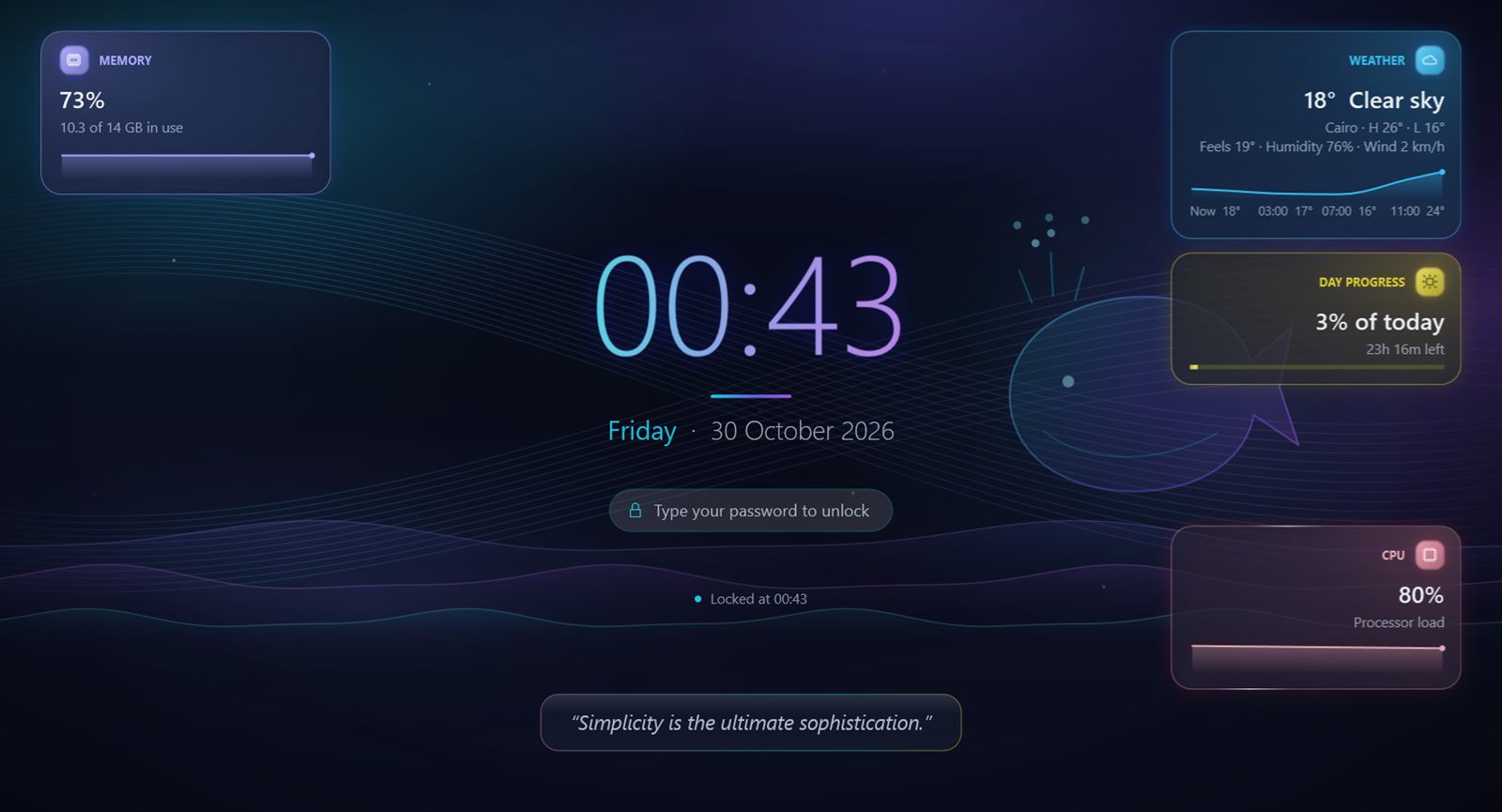
- 30living themes
- 33+colourful widgets
- 70+Telegram commands
- 0cost · completely free
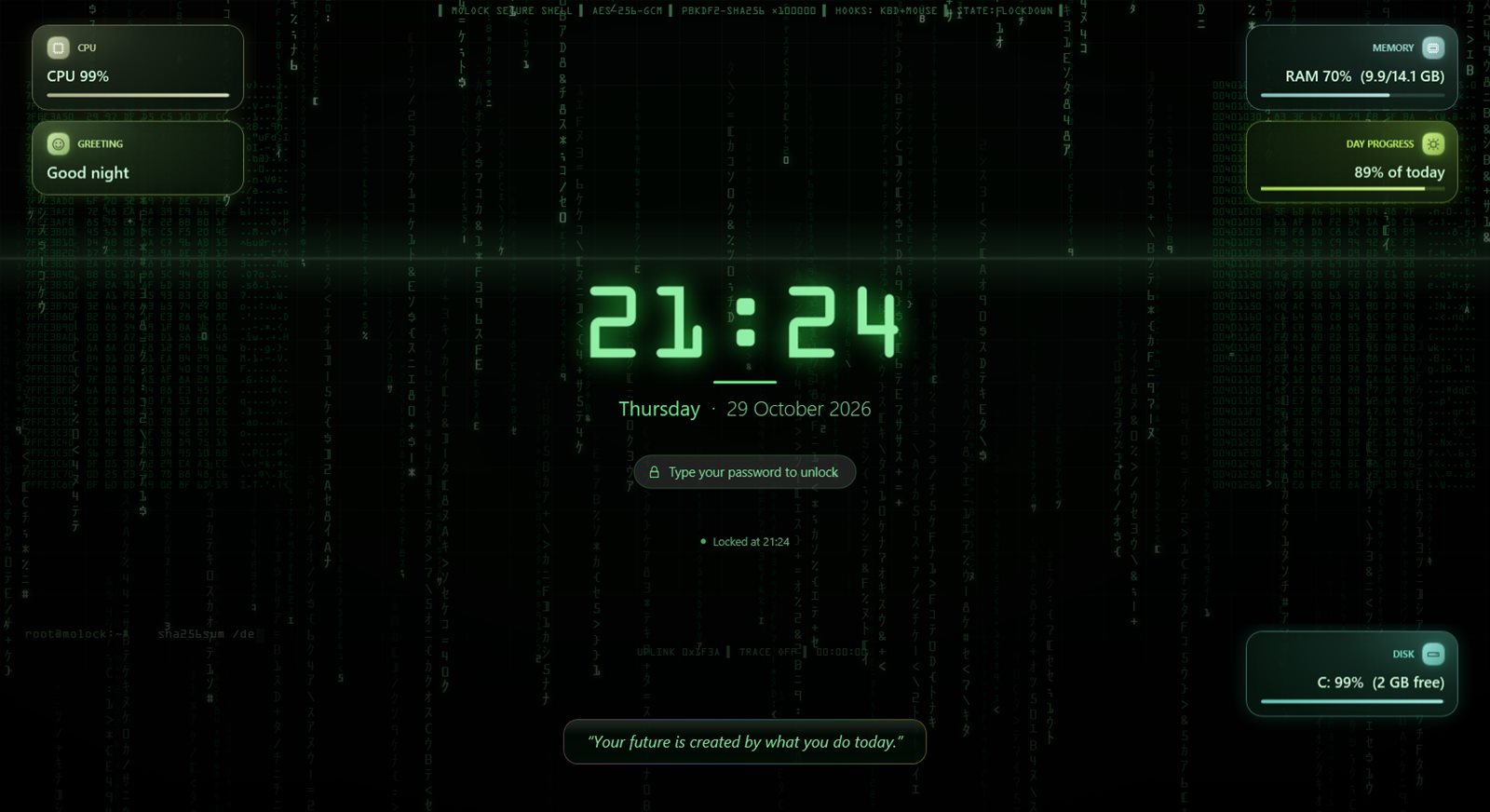
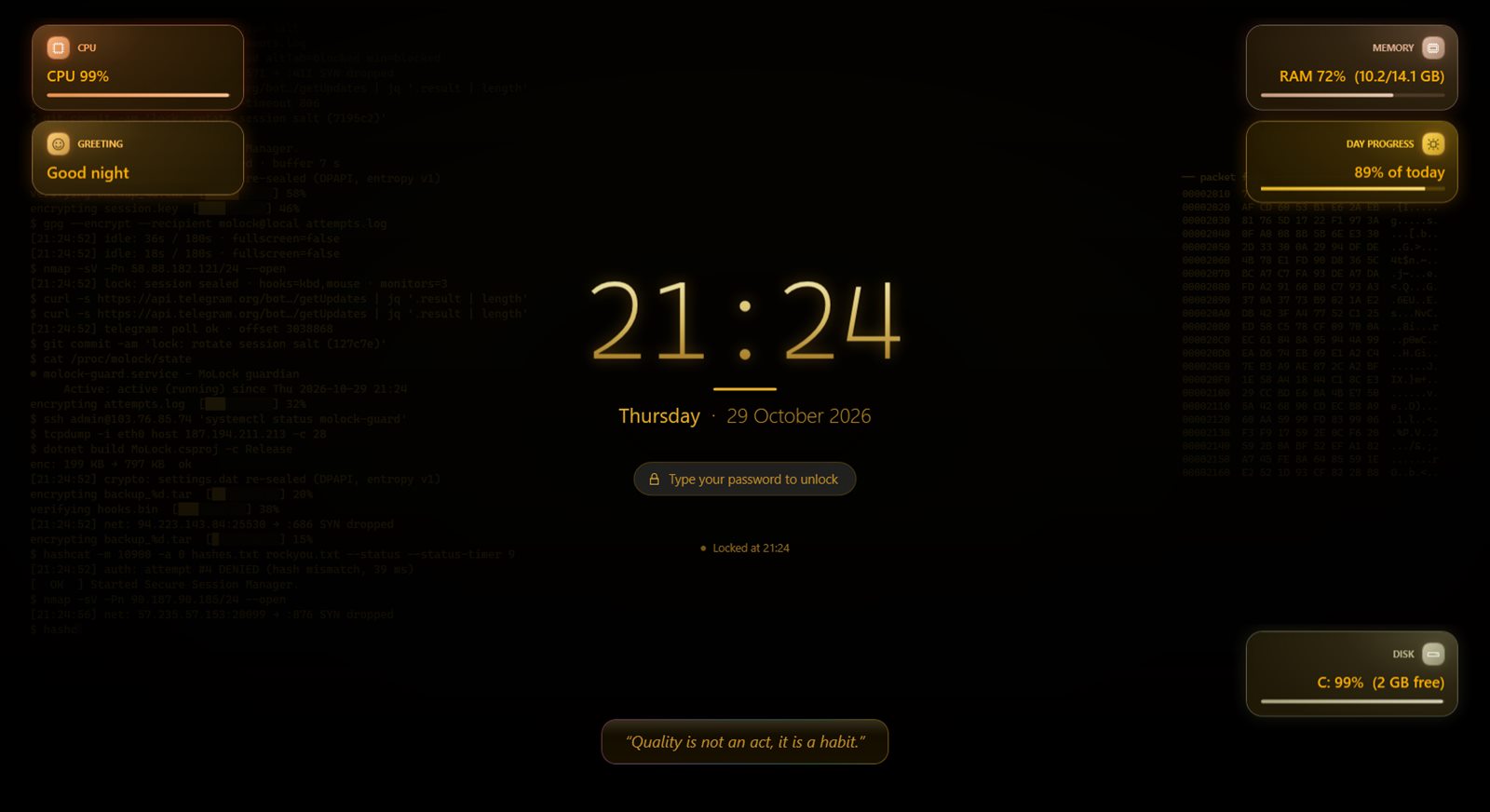
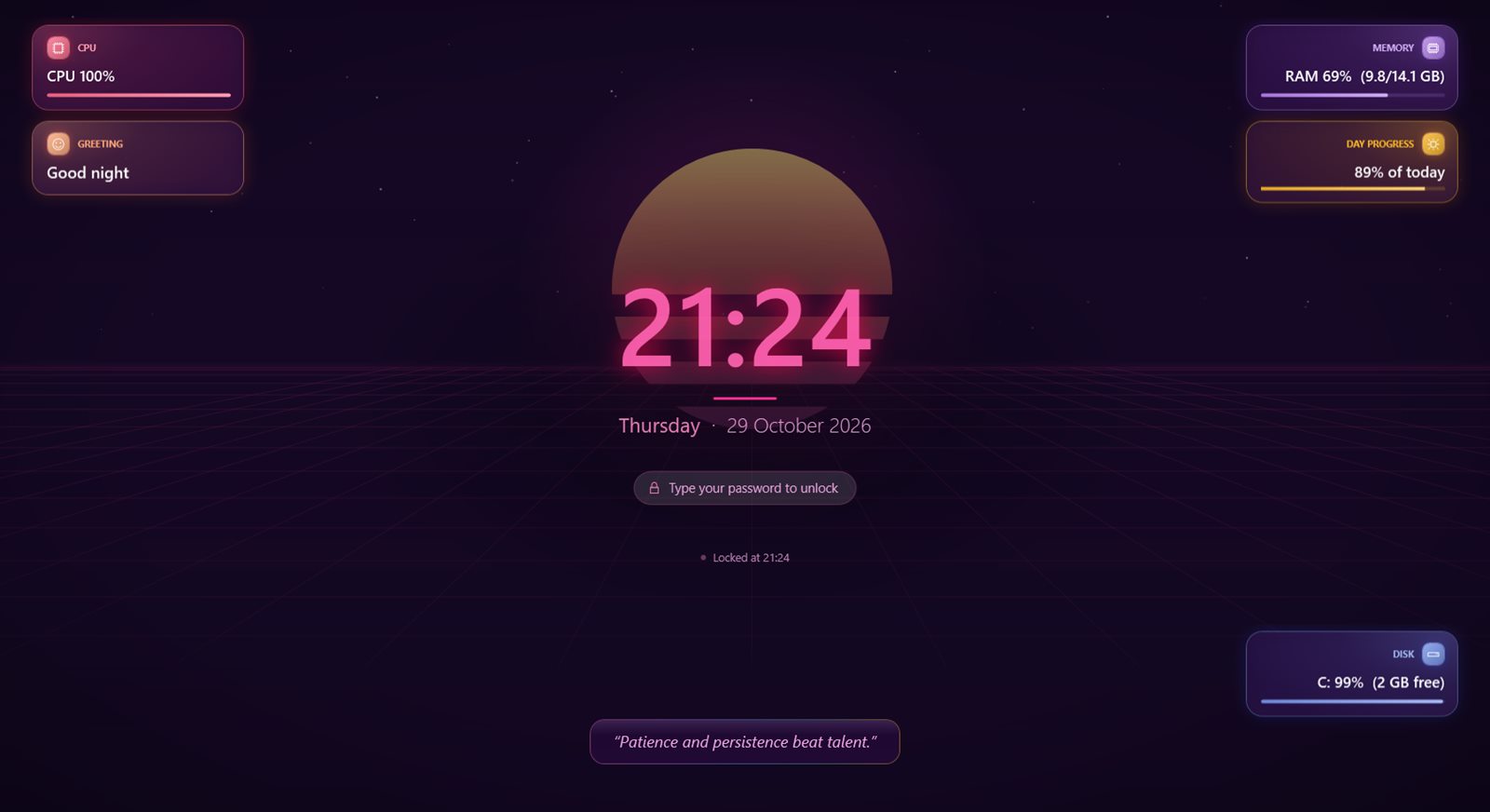
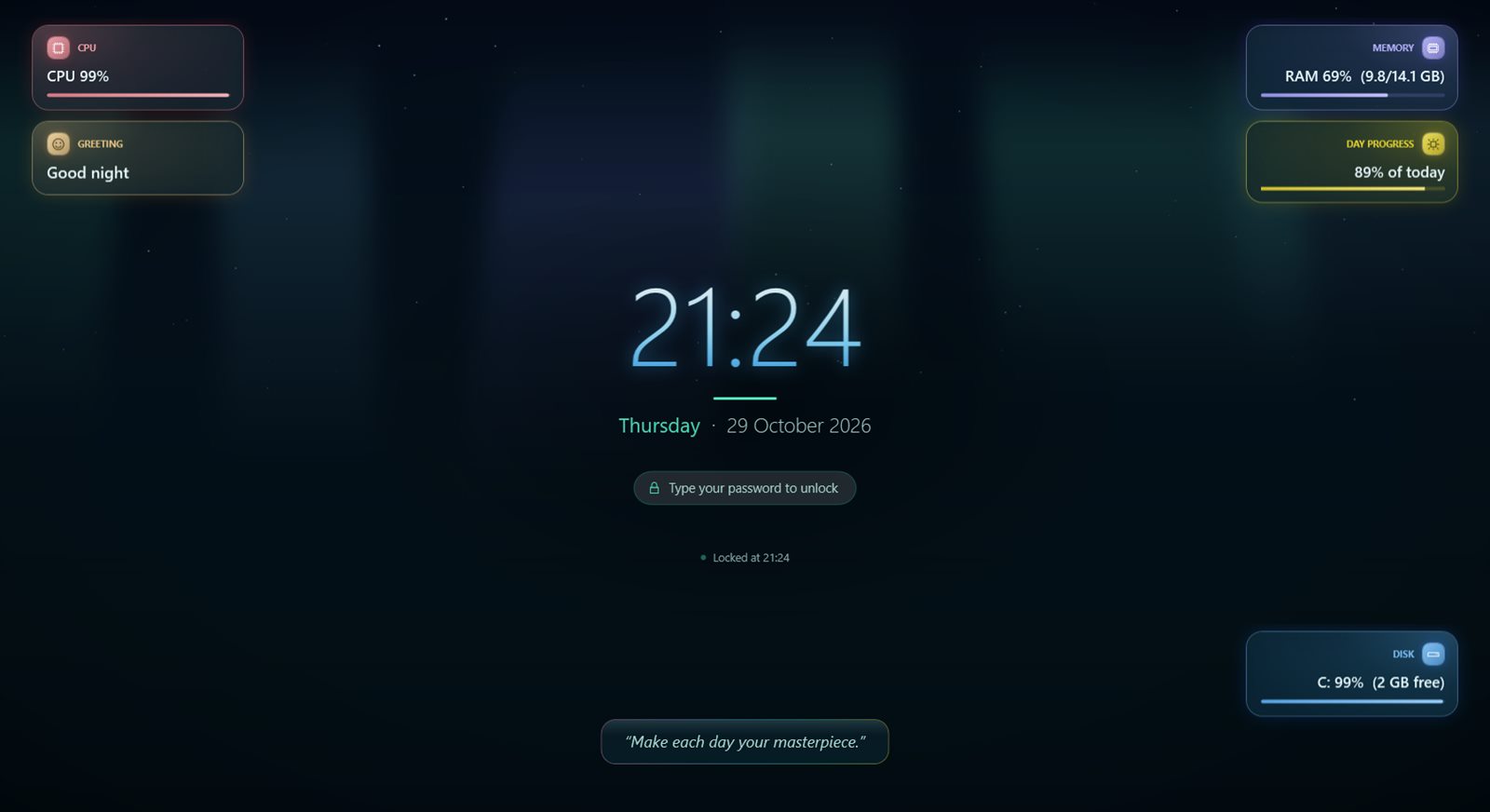
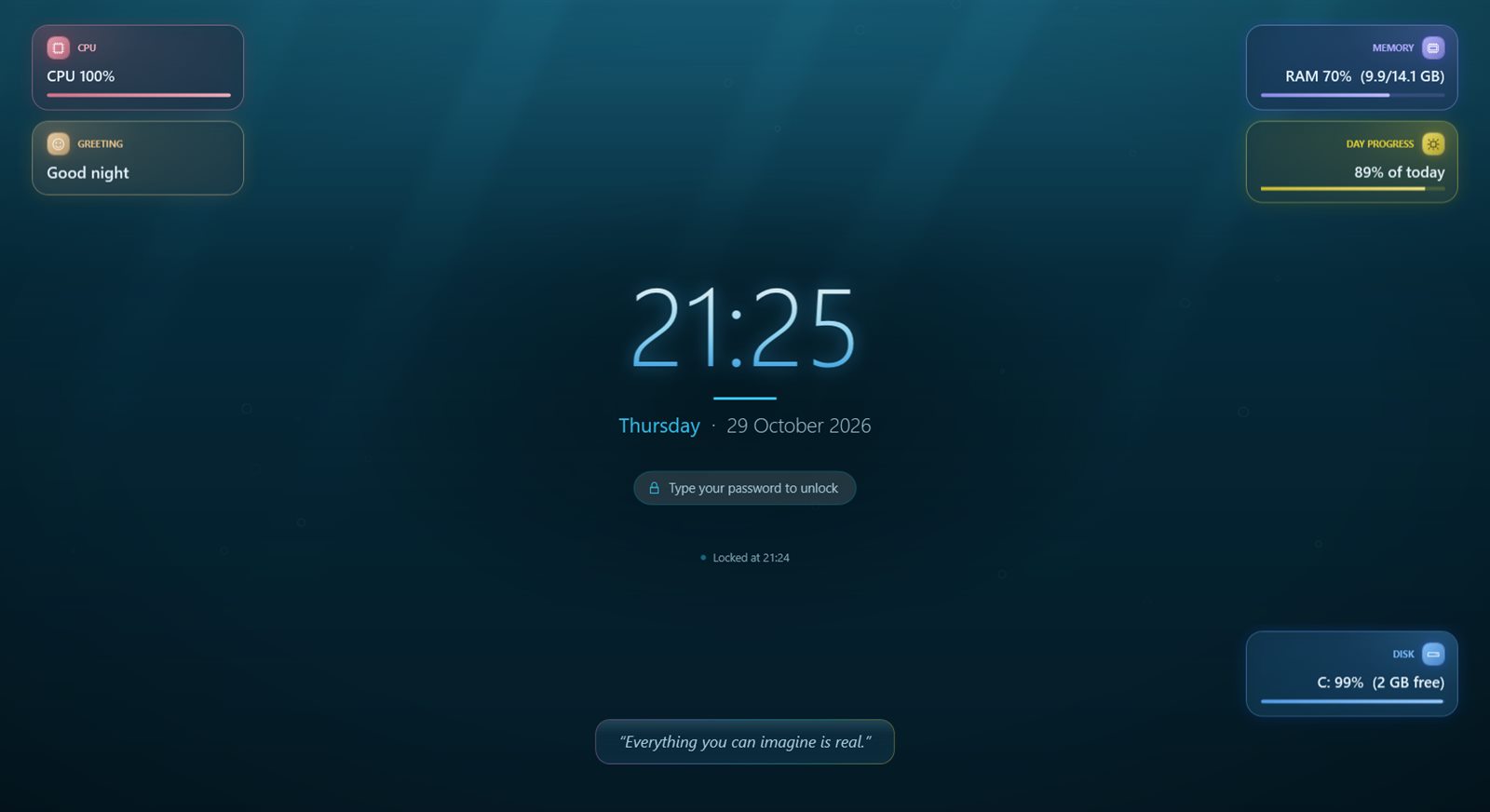
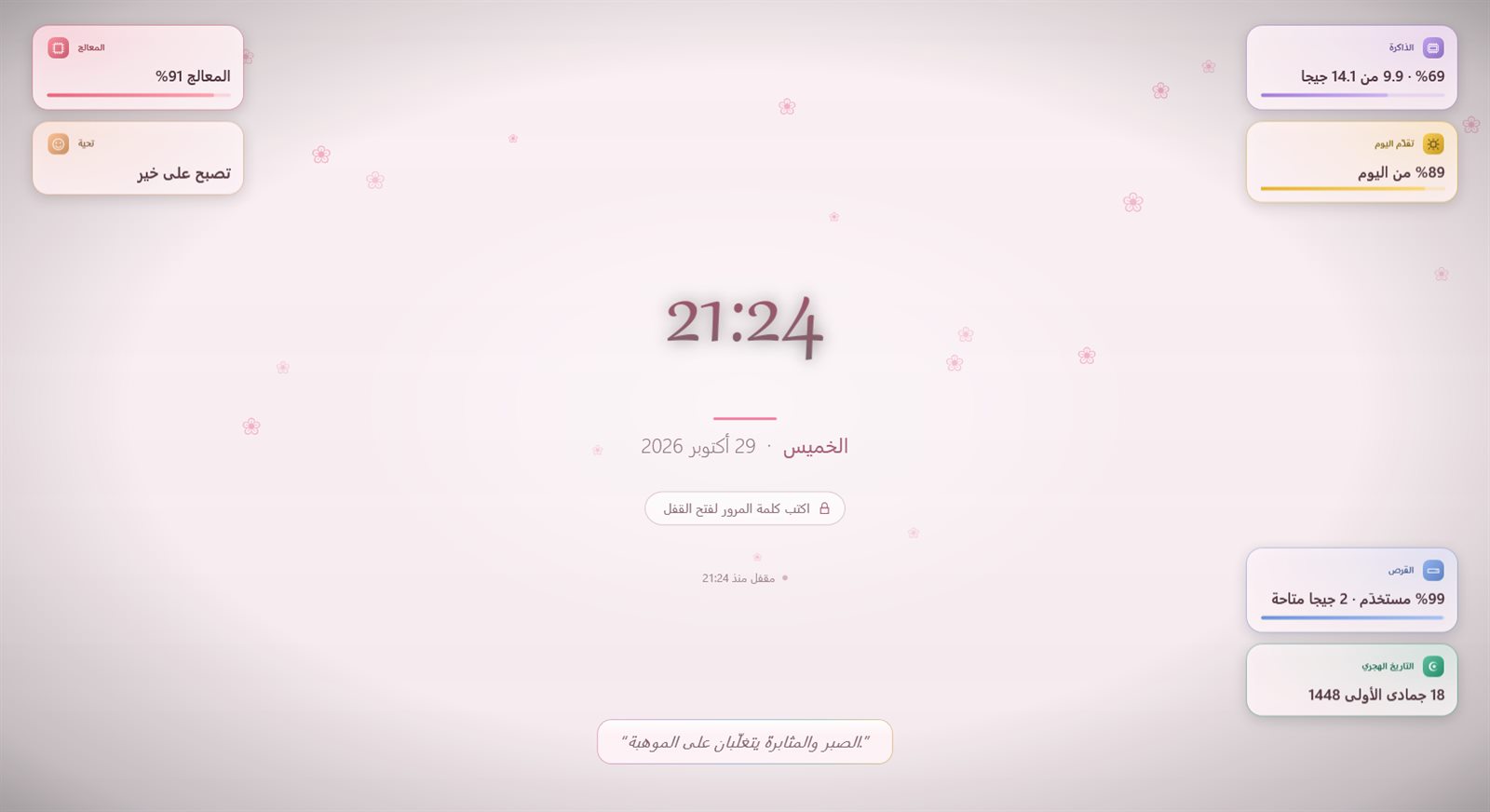
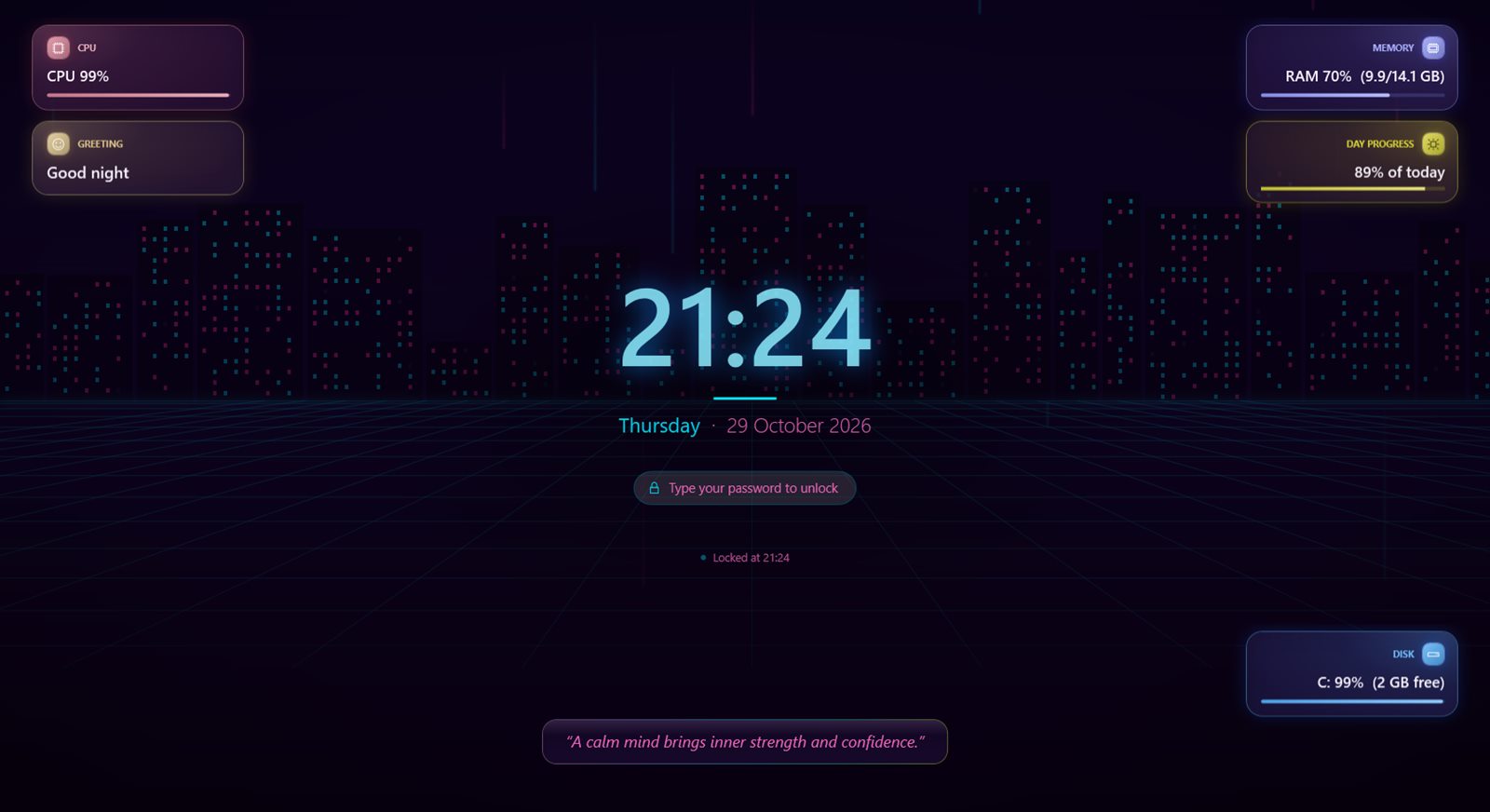
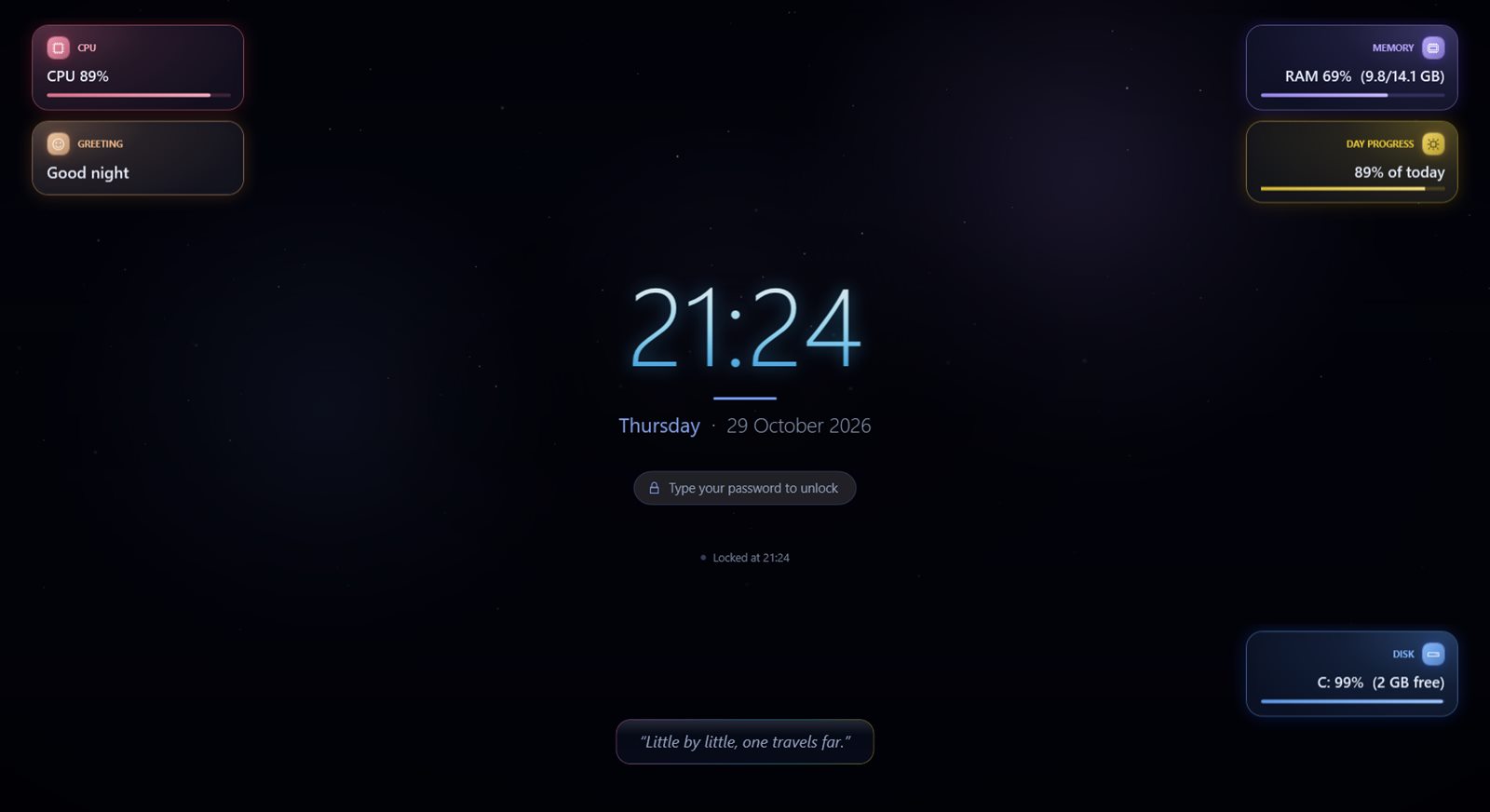
Lock-screen themes
In 3 steps
From download to protected — in minutes
No expertise needed — the wizard walks you through it.
- 1
Download & run
One zip. Unzip and run MoLock.exe — no admin rights, nothing extra to install.
- 2
Pick your password
Save your recovery code, then choose when to lock: on idle, at sign-in or on a schedule.
- 3
Link Telegram
Create your own private bot in two minutes and your PC is in your pocket: lock, camera, screen, files and power.
Why MoLock
Everything it takes to keep your PC yours alone
Just type to unlock
No box, no button to give anything away: type your password at any moment and it opens. Auto-lock on idle, on a schedule or at sign-in.
- Recovery code and authenticator-app codes
- Unlock with a trusted USB key or Bluetooth phone
- A duress password if you're forced to unlock
- Decoy screens: fake Windows Update or "No signal"
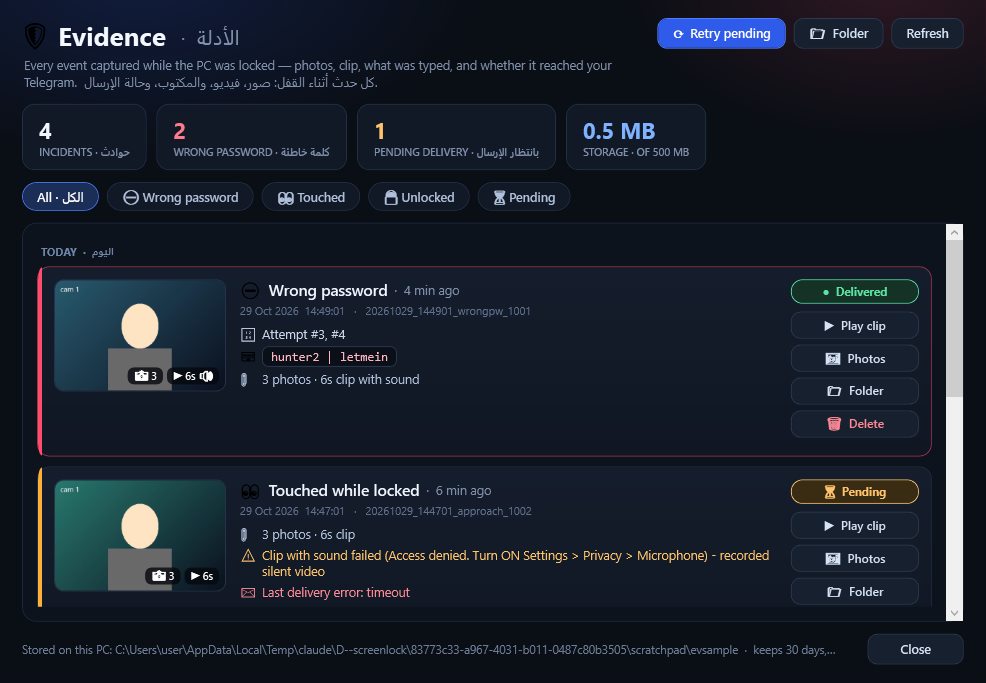
Know who tried
Every wrong attempt becomes a full incident: a photo burst, a clip with sound, a lock-screen shot and the location — in one Telegram message. Offline? It's sent when you're back.
- An alert when someone just touches the mouse or keyboard
- Records what was typed
- An evidence timeline: play, open, delete
Your PC in your pocket
From your own private Telegram bot: lock, grab the camera or the screen, listen through the mic, move the mouse and type, browse files, shut down or restart — even while the app is closed.
- 70+ commands, all as buttons
- Reset the password remotely
- See the PC on a map
/menu- 🐳 MoLock — Control panel
💻 DESKTOP-MO · 🔓 Unlocked · 🔋 82%🔒 Lock📷 Camera🖥 Screen⚡ Power
A lock screen you'll love
30 animated themes from aurora and deep space to hacker and sakura, plus 33+ colourful widgets: weather, prayer times, Hijri date, currency, calendar and more.
- Widgets fully in Arabic
- Unlock animations: Matrix, Fingerprint, Radar…
- Your own image, video or slideshow
Hard to kill
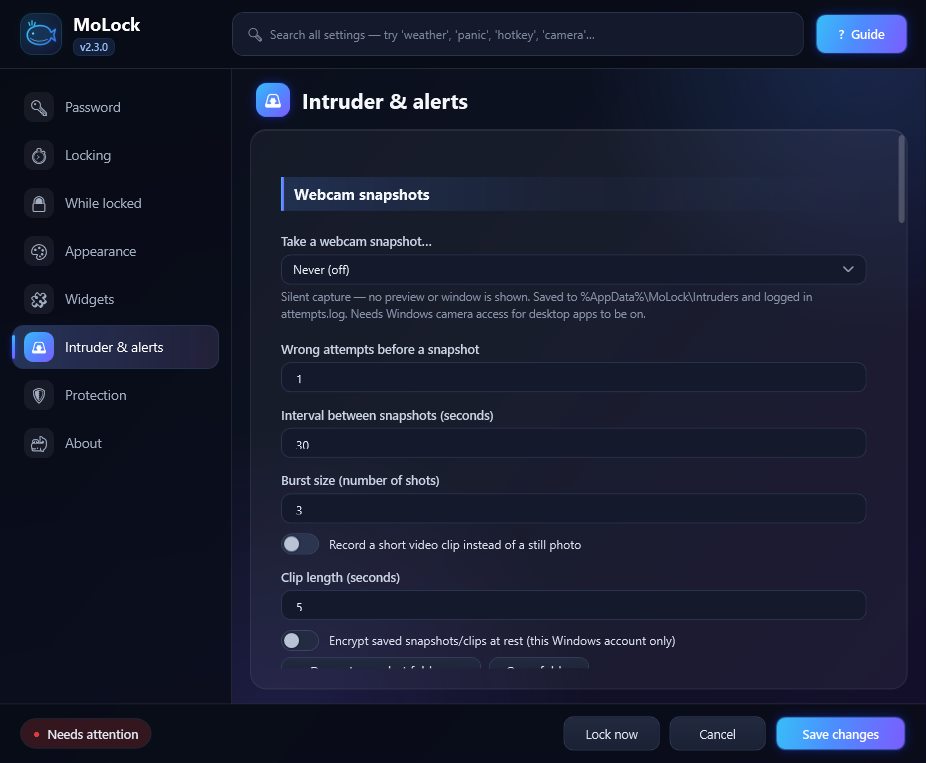
A guardian brings it back if someone kills it, and settings are protected by your password. Task Manager is blocked only while locked and always restored. When you close it yourself, it stays closed.
- Mouse and keyboard never freeze
- The "MoLock Fix" repair tool
- Starts with Windows
Remote control
Control your PC from your phone with Telegram
A bot that answers only you. Menus open in place without flooding the chat, and everything is a button away.
/locklock now/photocamera photo/screenshotscreenshot/wherewhere is it/pause 2hpause 2 hours/resetpasswordnew password/shutdown 10off in 10 min/herewho's there?
/menu- 🐳 MoLock — Control panel
━━━━━━━━━━━━
💻 DESKTOP-MO · 🔓 Unlocked
🔋 82% · ⏱ up 3h🔒 Lock📷 Camera🖥 Screen💻 Device⚡ Power🐳 App /pause 2h- ⏸ Auto-lock paused until 11:41 PM
 🚨 Someone tried to unlock
❌ 3 attempts · 📸 photos + 🎥 10 s clip · 📍 location/lock- 🔒 Locked.
Second by second
What happens when someone touches your PC?
From the first touch to the evidence landing on your phone.
- Step 1
Someone touches the PC
They move the mouse or press a key. With presence watch on, you get a photo or short clip: "someone is at your PC".
- Step 2
They try a password
There's no box or button to find, and nothing reveals the password's length.
- Step 3
The attempt is recorded
A photo burst, a clip with sound, a screenshot, the location and what was typed.
- Step 4
It reaches you on Telegram
All of it in one album from your private bot. Offline? It's sent the moment the connection is back.
- Step 5
The lock holds
After a few wrong tries a cooldown starts, Task Manager stays blocked, and if the app is killed it returns.
- Step 6
You decide what's next
From your phone: look for yourself with
/live 20, leave a note with/lockmsg, or switch the screen off with/screenoff. - Step 7
You come back and unlock
Type your password anytime — everything that happened is waiting in the evidence timeline.
Security & trust
Layer upon layer of protection — privacy first
Built to protect your PC without taking anything from you. Plain and simple — here's exactly what happens.
Multiple layers of protection
A password lock, a guardian that brings the app back if someone closes it, protected settings and a photo of every attempt — each layer backs up the next.
Encrypted on your PC
Your settings and evidence are protected with bank-grade encryption, tied to your own Windows account on your own PC.
Your password never leaves
Your password is never stored as-is and never sent anywhere — not even to the developer.
Digitally signed updates
Every update and announcement is digitally signed. The app refuses anything that isn't from us, so no one can push you a fake.
Privacy first
You decide what's shared: one switch turns device stats off. We never send your files, your screen or what you type.
No cookies, no ad trackers
This website uses no cookies and no ad trackers, and your IP address is never stored.
Works offline
Locking and unlocking work without the internet; evidence waits and is sent when you're back online.
Never locked out
A recovery code, password reset from Telegram, a built-in emergency unlock and a repair tool — there's always a way back in.
Tamper alerts more in v2.5
Kill it and it comes straight back. In v2.5: try to close it with a wrong password or end it from Task Manager, and you get an alert with a photo.
Real-life scenarios
Things that happen every day — MoLock is ready
- Scenario
You step away for a coffee
You leave your desk for five minutes with your inbox on screen, and a passing colleague takes a curious look.
MoLock: After the idle time you choose, the screen locks itself, with an optional countdown warning first. If anyone touches the mouse or keyboard, you get their photo on Telegram.
- Scenario
Kids and the family PC
The living-room PC holds your work and accounts, and the little ones love to hop on without asking — especially late at night.
MoLock: It locks after a short idle time, and can lock on a schedule such as bedtime. Nobody can open Settings or quit the app without the password.
- Scenario
Your laptop is stolen
The laptop vanished from your bag. Once someone opens it and it's online, you have tools to help.
MoLock: Get its detailed location and a map pin, have it report its position every few minutes, and quietly photograph whoever is using it. Then hand that to the authorities.
- Scenario
Someone tries to guess your password
Someone sits down and starts guessing: your birthday, your name, 123456…
MoLock: Each wrong try becomes an incident: a photo burst, a clip with sound, a screenshot, the location and what they typed — one album on Telegram. After a few tries, a cooldown kicks in.
- Scenario
At the café, you walk off with your phone
You're working in a café or coworking space and get up to order, leaving the laptop on the table.
MoLock: Pair your phone as a trusted Bluetooth device: when it walks away and disconnects, the screen locks; while it's connected, the PC unlocks.
- Scenario
Someone tries to close or kill the app
Someone a bit tech-savvy tries to quit MoLock or end it from Task Manager.
MoLock: While locked, Task Manager is blocked. Exiting and Settings are password-protected. And if it's killed anyway, a watchdog brings it right back.
Comparison
MoLock vs the built-in Windows lock
MoLock doesn't replace your Windows password — it's a layer on top that sees, reports and obeys you.
| Feature |  MoLock MoLock | Windows lock |
|---|---|---|
| Unlock by just typing — no box | Yes | No |
| Photos + a clip with sound of wrong attempts | Yes | No |
| Instant Telegram alert | Yes | No |
| Lock, unlock and control the PC from your phone | Yes | No |
| Locate a stolen laptop | Yes | No |
| Duress password if you're forced to unlock | Yes | No |
| 30 animated themes and 33+ widgets | Yes | Partly |
| Prayer times and Hijri date on the lock screen | Yes | No |
| Auto-lock on idle or on a schedule | Yes | Partly |
| Free | Yes | Yes |
Coming in v2.5
What's next is even stronger
Camera motion detection
While locked, motion in front of the camera sends you an instant alert with a photo.
SoonTamper alerts
Someone tries to close MoLock with a wrong password or end it from Task Manager? Alert + photo.
SoonBot linking in the wizard
The setup wizard links your own Telegram bot and sends you a guide with commands and examples.
Soon3 style profiles
Simple, Professional or Dynamic — pick a look in one tap.
SoonUpdate from the bot
Update MoLock on your PC from Telegram while you're away.
Soon
FAQ
Before you download
Is MoLock free?
I forgot my password. What now?
/resetpassword even while the PC is locked. If none of that is available, "MoLock Fix" closes the app and returns the PC to normal.How do I take a photo of someone trying to unlock my PC?
/photo.How do I control my PC from my phone?
/menu for a tidy control panel covering locking, camera and evidence, screen and control, device status, and power. There are direct commands too, like /lock, /screenshot, /photo and /shutdown 10. See all commands.