
How to lock your PC and control it from Telegram
Here's how to lock your PC and control it from Telegram with MoLock 2.5, in short steps that use the same button names you'll see in the app. Install it and pick a style, let the setup wizard link your own Telegram bot step by step, and get a photo alert the moment someone approaches your PC. Then come back whenever you need to: forgot the password? Want to update or remove MoLock? It's all here.
Download & install
MoLock runs on Windows 10 and 11 (64-bit). It needs no administrator rights and nothing extra to install — everything comes in a single zip of about 70 MB.
Download the zip
Grab the latest version from the download page. It's one ZIP file with the whole app inside.
Unzip it
Right-click the file → Extract All. Don't run the app from inside the zip itself — extract it to any folder first.
Run MoLock.exe
Open the MoLock folder and double-click
MoLock.exe(or Install MoLock.bat). The setup window opens, in English or Arabic.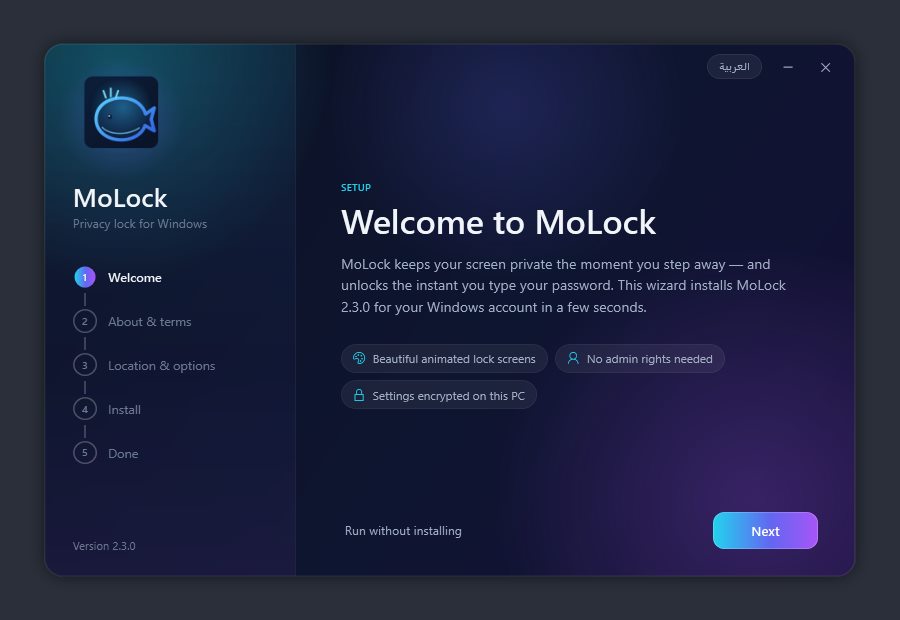
If SmartScreen appears
Windows may say it "protected your PC" because it hasn't seen the app before. Click More info, then Run anyway.
Read the terms — and exactly what's sent
On About & terms, tick "I understand and accept". The same page has a Device stats & privacy box that lists exactly what goes to the developer when stats are on: device name, Windows version, CPU / RAM / graphics / screens / disk size, app version and language, MoLock's own CPU and memory use, and how many locks and wrong attempts happened in the last 24 hours. It never sends your password, photos or evidence, your files, what you type, your Telegram messages or your Windows user name. A switch right there turns sharing off.
Pick the location & options
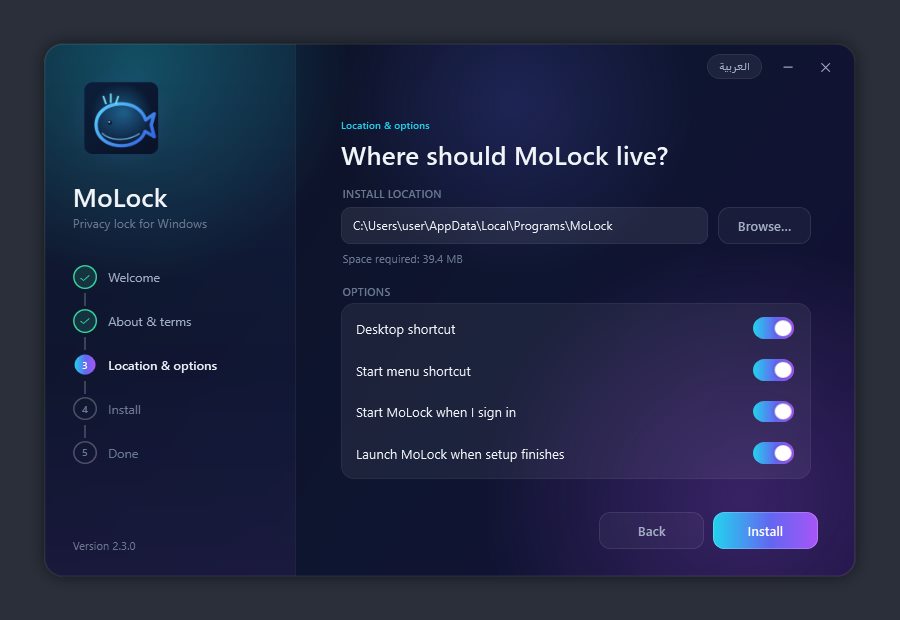
On Location & options, the suggested folder is fine as is, and you can add a desktop shortcut, a Start menu shortcut, and "Start MoLock when I sign in".
Pick your style
On Look & feel, choose your lock screen's look in one click, each with a live preview: Simple (calm, minimal and the lightest — good for older PCs), Professional (the MoLock Signature look with the most useful widgets and subtle motion — recommended) or Dynamic (an animated aurora scene, colourful widgets and a glowing clock). It's only a starting point — every detail can be changed later in Settings.
Link Telegram (or later)
The Telegram step links your own bot while you install, using the steps in the bot section. Not now? Click Skip for now and do it later.
Install — done
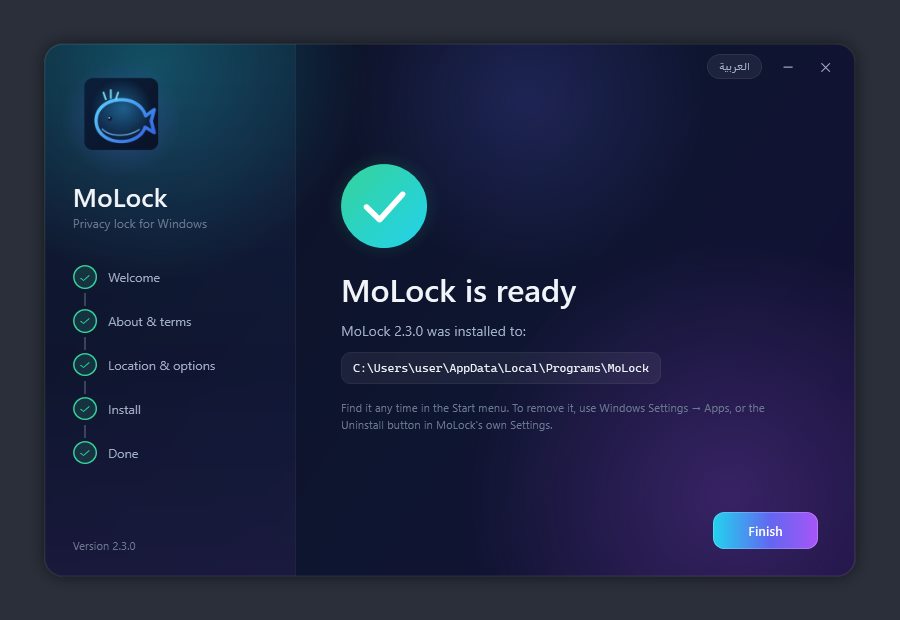
Click Install and within seconds you'll see "MoLock is ready". Click Finish and the app opens for the first time.
Rather not install? On the first page click Run without installing and it runs straight from the folder (portable). Installing a newer version over an old one keeps your password and settings.
First-run setup wizard
The first time you open MoLock, a short 9-step wizard appears; it takes about two minutes. Everything in it can be changed later in Settings, and you can run it again from Settings → Password → Run setup wizard.
Choose your password
On the Security step, type a password of at least 4 characters and confirm it. Pick something you can type fast — the lock screen has no box and no username, you just type.
Save the recovery code
Right below, your recovery code appears. Write it down or store it somewhere safe now — it won't be shown again. If you ever forget your password, this code opens the screen.
Style: Simple, Professional or Dynamic
The Look & feel step shows the three styles with a live preview. If you already picked one while installing, it's selected — keep it or switch. Later, Settings → Appearance lets you pick any theme and fine-tune its effects.
Check camera, mic & location
On the Access step, click Check next to each one. If it's blocked, MoLock opens the right Windows privacy page — turn the toggle on and check again. Don't run MoLock "as administrator"; that can block the camera and mic.
When should it lock?
Set how many seconds of no activity before it locks (0 = off), then choose: lock as soon as you sign in, start with Windows, and don't count you as away while a movie or game is full-screen.
Protection & start mode
Keep Keep MoLock alive on so it comes back if someone closes it, plus Require my password to open Settings or exit MoLock. Then choose: lock the screen as soon as it starts, or run in the background and lock only once you step away.
Evidence & documentation
Choose photo or video (with or without sound) and how many seconds, then when to capture: someone touches the mouse or keyboard while locked, a wrong password is typed (with what they typed), and when the PC is unlocked.
Telegram
This is where you link your own bot so alerts and evidence reach your phone (steps in the next section). If you linked it while installing, it's already done. You can also skip it and do it later in Settings.
You're all set
The last step sums up what you chose: password, style, Telegram and evidence. It also has the Share device stats with the developer switch, with what is and is never sent spelled out, so you decide knowingly. Click Finish to save.
Trying it out? In the "When should it lock?" step, set the auto-unlock safety net to 120 seconds so the screen opens itself after two minutes while you get used to it. Set it back to 0 afterwards.
The wizard's first page shows the emergency shortcut that opens the screen if anything ever gets stuck. Note it and keep it to yourself; you can change or disable it in Settings → Locking.
Link your own Telegram bot
This bot is yours alone: you create it, and it only answers your own chat. It's where alerts and photos arrive, and how you control the whole PC. No IDs to look up and no fields to fill: the setup wizard walks you through it step by step (while installing or on first run), and the whole thing takes about two minutes.
Open @BotFather from the wizard
On the Telegram step, click Open @BotFather. It opens @BotFather in Telegram — Telegram's official bot maker, with the blue verified tick.
Send /newbot and pick a name
Send
/newbot. It asks for a name for the bot — anything you like, e.g. "My MoLock".Pick a username ending in "bot"
Next it asks for a unique username that must end in bot, e.g. ahmed_pc_lock_bot. If it's taken, try another.
Copy the token and paste it in the wizard
BotFather replies with a token that looks like 123456789:AAH…. Copy it, go back to the wizard, click I have the token and paste it (pasting BotFather's whole message works too), then Check. The wizard checks the token and shows your bot's name.
Press Start in your bot
Click the wizard's Open button for your bot, then in Telegram press Start (or send
/start). The wizard waits about two minutes; if time runs out, click Wait again."Is this you?" → confirm
The wizard shows your Telegram name and asks Is this you? Click Yes, that's me. From now on, only that chat can control the PC. If it isn't you, click Not me and try again.
A test message and a full guide
Within seconds, Telegram brings you a test message and a full guide: the commands grouped by topic, examples to try right away, and Open the control panel, All commands and Updates buttons. Send
/startor/guideany time to get the guide again.Or do it later in Settings
Skipped it, or want to link a different bot? The same steps live in Settings → Intruder & alerts. To control the PC from the chat, keep "Allow commands from this chat" on, then send
/menufor the control panel.
No need to memorise anything: /menu opens a button panel and /help lists every command by group. Every command, with an example reply, is on the commands page.
The token is a secret. Anyone with it can drive the bot, so never share it or show it in a screenshot. MoLock only obeys commands from the one chat you confirmed and ignores everyone else. If the token leaks, send /revoke to @BotFather and link the new token in Settings.
Everyday use
After setup, MoLock runs quietly from the whale 🐳 icon by the clock. Here are all the ways to lock, pause and restyle it — and how it guards your PC while you're away.
It locks itself when you step away
In Settings → Locking, set the idle seconds and, if you like, Warn before idle lock: a small countdown appears in the corner, and any mouse movement cancels it.
Lock it yourself in a second
Right-click the whale icon → Lock now, or set your own "Lock now" key in Settings → Locking → Global hotkeys. There's also a Weekly schedule to keep the screen locked during set hours.
Lock from your phone
From Telegram:
/locklocks right away and/timer 5locks in 5 minutes. With a trusted USB key or Bluetooth phone, it can also lock the moment you pull the stick or walk away with your phone.Someone approached your PC? You know in a second
While the PC is locked, MoLock watches the webcam for movement in front of it (nothing is recorded until something moves). The moment someone approaches or touches the keyboard or mouse, Telegram brings you a photo in about a second with "👀 Someone approached your PC", how long it's been locked, and buttons: 📸 Another photo · 🎥 Video · 🔊 Siren (a loud alarm on the PC) · 🔒 OK. Lighting changes don't trigger it. In Settings → Intruder & alerts → Approach & motion detection you set the motion sensitivity (1–10) and the minimum time between alerts.
An instant camera
The moment the screen locks, the camera warms up in the background, so the first photo is taken straight away. With motion detection off, it switches off again after a few minutes (5 by default) so the webcam light doesn't stay on.
Tamper alerts
If someone types a wrong password while trying to close MoLock, pause it or open Settings — or ends it from Task Manager — you get an instant alert with a photo. 3 wrong tries lock the screen right away, and if it was locked when someone killed it, it comes back locked. Signing out, updates and crashes never count as tampering. It's in Settings → Protection → Tamper alerts.
Pause auto-lock
Whale icon → Pause auto-lock: 5 minutes to 8 hours, "Until tomorrow morning", "Until I resume it", or a custom time up to 7 days. From Telegram:
/pause 2h, then/resume.Change the look & widgets
In Settings → Appearance pick one of 35 animated themes and tune its effects (intensity, particle density, speed, accent colour, glow) with a live preview of the real lock screen. In Widgets add weather, prayer times, currencies, world clocks and more, each with its own size and position. See them all on the themes page.
Review the evidence timeline
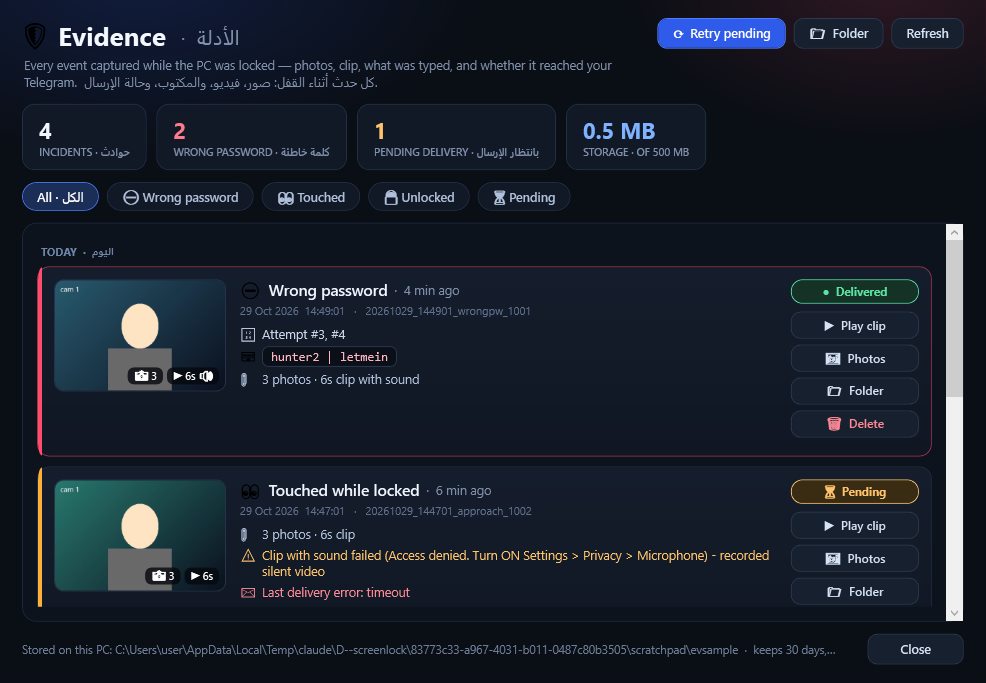
Whale icon → 🎥 Evidence timeline: every incident with thumbnails and whether it reached Telegram, with play, open or delete for each. You can set how many days and how much space to keep.
At home? In Settings → Protection → Trusted Wi-Fi networks click "Add current network" and the screen won't idle-lock while you're on your own network. Manual lock, the schedule and other triggers still work. You can also switch motion detection and tamper alerts on or off from your phone with /settings.
Unlocking: every way in
The main way is simpler than you'd think: just type. Next to it are backup ways in that you can switch on if you want.
Type your password anywhere
There's no box and no button. Start typing your password at any moment and the screen opens as soon as it matches. Made a typo? Just keep typing the right one — MoLock matches the end of what you type. Nothing is shown except a subtle pulse, never the length.
Recovery code
Forgot the password? Type the recovery code you saved during setup on the lock screen the same way. Make a new one any time in Settings → Password → Generate new recovery code.
One-time code from an authenticator app
In Settings → Password → Authenticator app click "Set up / show QR" and scan it with an authenticator app like Google Authenticator. You can then unlock with the one-time 6-digit code that changes every 30 seconds.
USB key or Bluetooth phone
In Settings → Protection: pick a USB stick and click "Set up this drive as key" to unlock when it's plugged in, or pick a paired phone or watch to unlock while it's connected. Both can also lock when removed or out of range.
Unlock button in Telegram
Turn on "Send an 'Unlock' button to Telegram while locked" in Intruder & alerts. Each time the PC locks you get a 🔓 Unlock this PC button — or send
/unlockany time.Duress password
A second password, different from your real one, for when someone forces you to unlock. The screen opens completely normally so nobody suspects anything, while MoLock quietly takes a photo, logs it and sends you a 🆘 alert on Telegram. Turn it on in Settings → Password.
The duress password is a way to document and quietly ask for help — not a substitute for your safety. In real danger, you matter more than any device: comply, then take the evidence to the proper authorities.
Forgot the password or something's stuck
MoLock is built so you never get locked out of your own PC. There are several safety valves — go through them in this order.
Try the recovery code
Type the recovery code on the lock screen exactly like a password. Once you're in, set a new password in Settings → Password and generate a fresh code.
Reset it from Telegram — even while locked
Send your bot
/resetpasswordand choose: Type my own (send it twice; your messages are deleted at once and the strength is shown), Suggest a strong one, or New recovery code. It takes effect on the locked screen immediately — and even while MoLock is closed, as long as the background bot is running.The emergency shortcut
The shortcut shown on the first page of the setup wizard opens the screen instantly if anything gets stuck. View, change or disable it in Settings → Locking → Emergency escape hotkeys.
Run MoLock Fix
If Task Manager says "disabled by your administrator", the mouse froze after Windows locked, or a copy of MoLock won't close: open the app folder and double-click
MoLock Fix.bat. Pick 1 (quick fix while MoLock keeps running: Task Manager, mouse, sound) or 2 (full repair: closes every part of MoLock and fixes everything, keeping the app and your data). Option 5 shows exactly what a mode would do before anything changes.Still stuck? Talk to the developer
After a full repair, MoLock stays closed until you open it from its icon. If the problem is still there, send it to the developer from Settings → About → Send feedback, or reach out on WhatsApp or Facebook, and you'll get a reply.
MoLock blocks Task Manager and system keys only while locked and restores them the moment you unlock. The mouse and keyboard never freeze, even if Windows locks on top. MoLock Fix is there for the rare exceptions, and it keeps a log of everything it did (option 6 opens the latest one).
Updates
Updates arrive on their own, quietly, and nobody can fake one. Since 2.5 you can also update from your phone with one command — even while the PC is locked.
Automatic, in the background
In Settings → About, keep "Update the app automatically in the background" on. The update downloads in the background and installs at a quiet moment — never on its own while the screen is locked. When it's done you get a "✨ MoLock updated" message on Telegram, and if it didn't go through you're told too and it tries again later.
Update from Telegram with /update
Send
/update(or tap 🆕 Update in the control panel). If there's a new version you get "🆕 New update available" with the new version, the one you have, the size and what's new, plus buttons: ⬇️ Update now · 📝 Details · ✖ Not now. If you're up to date it says "✅ You're on the latest version".Progress, then a check before installing
After Update now, a single message updates itself with the download progress. MoLock then makes sure the file is genuine and complete before installing it, restarts within seconds and sends "✨ Updated" as soon as it's done.
PC locked? You choose
If the PC is locked when you ask, the bot asks you: ⚡ Install now (MoLock restarts and locks again right away) or ⏳ After unlock (it downloads now and installs as soon as the PC is unlocked).
Signed, and your data stays put
Every update is digitally signed by the developer and checked by MoLock, so nobody can slip you a fake one. If anything goes wrong it rolls back to the previous version. Your password, settings and evidence are never touched.
Check by hand
Prefer the PC? Settings → About → ⟳ Check now. The same place lets you pick the update channel: stable or beta. From Telegram,
/versiontells you which version you have.
What's new always shows up in 📢 Announcements & updates on the whale icon, or send /news to your bot. Every announcement is digitally signed, so nobody can push you a fake one.
Uninstall MoLock
If you decide to go, removal is clean and leaves the choice to you: keep your data or wipe everything.
From Windows Settings
Windows Settings → Apps → MoLock → Uninstall. Or from inside the app: Settings → Protection → Uninstall MoLock…, or Uninstall MoLock.bat in the app folder.
Confirm with your password
So nobody can remove the protection behind your back, uninstalling asks for your MoLock password.
Choose: keep or remove
Keep my settings & evidence: your password, preferences, log and photos stay on the PC in case you come back. Remove everything: deletes them too, and that can't be undone.
"Why are you leaving?" (optional)
Before you go, one tap on a reason (don't need it anymore, hard to use, something didn't work, it slowed my PC…) helps make the next version better. No name and no files are sent, and you can simply skip it.
Watch it finish
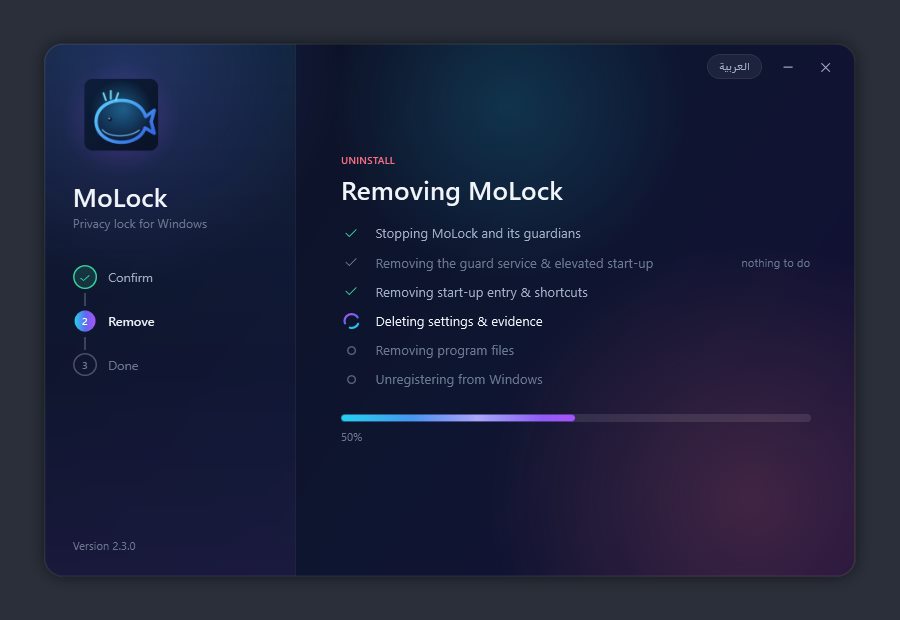
You'll see each step: stopping MoLock and its guardians, removing the guard service, start-up entries and shortcuts, settings and evidence (if you chose), and the program files. Downloaded update files are cleaned up too.
Full clean-up with MoLock Fix
If the app itself won't open or is damaged: run
MoLock Fix.batand pick 3 (uninstall, keep your data) or 4 (uninstall + delete all data — it shows exactly what will be deleted and waits for you to confirm). Option 5 is a preview that shows what would happen without changing anything, and 6 opens the latest log.
"Remove everything" and option 4 in MoLock Fix permanently delete evidence photos and clips. If you need any of them, save them first from the Evidence timeline.
Want every bot command with examples? Open the command reference. Still have a question? See the FAQ.