Your private portal. Readable by you alone.
See your notes, to-dos, reminders and the unlock history with photos from any browser, on your phone or any computer. Everything is encrypted on your PC before it leaves, only your portal password unlocks it — and every sign-in is reported to your Telegram.
01 / 06What it does
Your PC goes with you. Without leaving your desk.
The portal is a secure window onto what MoLock keeps for you. Entirely optional, and it never affects locking.
Notes
Write on the PC and carry on from your phone, or the other way round. Pin the ones that matter.
To-dos
Tasks with a priority and a due date — tick them off anywhere and your PC updates.
Reminders
Create a reminder in the browser and it rings on your PC on time — even over the lock screen.
Unlock history with photos
Every wrong attempt and every unlock — normal, secret, from Telegram or with the recovery code — with its time and photo.
Sign-in reports
Every sign-in to your portal, allowed or denied, reaches your Telegram with the city and browser type.
From any browser
No extra app: your portal code and password are all you need, on any device.
REMINDER · TODAY
Call the accountant
18:30 · shows on the lock screen · Bell
TO-DO
- Renew the internet plan
- Send the client proposal
- Back up the photos
UNLOCK HISTORY · ENCRYPTED
- 23:52Wrong password

- 19:05Unlocked
- 14:21Secret quick unlock
02 / 06Security, plainly
What is encrypted, and what is seen.
We won't just say "it's secure". Here is exactly what happens to your data — including the little that stays visible so the service can work.
YOUR PC
Encrypted here
- Notes, to-dos, reminders
- Unlock history & photos
- The key never leaves
MOLOCK SERVICE
Stores, cannot read
- Sees: type, time, size
- Never sees: text or photos
- Never knows your password
YOUR BROWSER
Decrypted here
- After your portal password
- On any device
- Every sign-in reported to Telegram
Readable only by you
- Note titles and text
- To-do text, due dates and done state
- Reminder text, time, repeat and sound
- The details of each unlock attempt
- Attempt photos
Never leaves your PC or browser
- Your portal password
- Your encryption key in usable form
- Your lock password
- Anything in the first column, in readable form
- Your files, screen or keystrokes
Minimal metadata it needs to work
- That an item exists, its type (note, to-do or reminder), when it changed and its size
- For each attempt: the time, the kind of result and whether there is a photo
- For each portal sign-in: the time, allowed or denied, approximate country and city, browser type
- Your internet address is never stored — only a scrambled fingerprint that changes daily
- The developer sees counts and sizes only — never content
03 / 06Limits & guarantees
Plain numbers. Honest promises.
- 5wrong passwords lock the portal for 15 minutes
- 12hlongest a sign-in session lasts
- 30daysthe unlock history is kept
- 300newest attempts kept at most
If you forget your portal password
Nobody can recover it — not even the developer, because it isn't stored anywhere. Set a new one from MoLock on your PC; your data lives on your PC and is not lost.
Changing the password signs everyone out
Setting a new portal password closes every open portal session at once, on every device.
It never touches the lock
The portal can neither lock nor unlock your PC, and a service outage never affects locking.
History upload is optional
Nothing is uploaded before you set a portal password. After that you can switch off "Keep an encrypted history in my portal" at any time.
Whoever knows the password gets in
That is true of any system. So pick a strong password you use nowhere else — and since every sign-in reaches your Telegram, you can change it within seconds.
04 / 06Set-up
Five steps. Two minutes.
Update to 2.6
The update arrives automatically and signed, or send
/updateto your bot. You can also download it again.Set a portal password
In MoLock Desk → Portal (or in Settings). We recommend a password different from your lock password — it is what opens your data from anywhere. Never type it into Telegram.
Note your portal code
MoLock shows your portal address and personal code, in the form XXXXX-XXXXX. Your bot sends them too when you type
/portal.Sign in from any browser
Open the address and enter the code and password. Decryption happens inside your own browser only.
Watch the sign-in messages
Every sign-in, allowed or denied, reaches your Telegram. If it wasn't you, change the password and everyone is signed out at once.
05 / 06Reminders & to-dos
It rings on time. Even while locked.
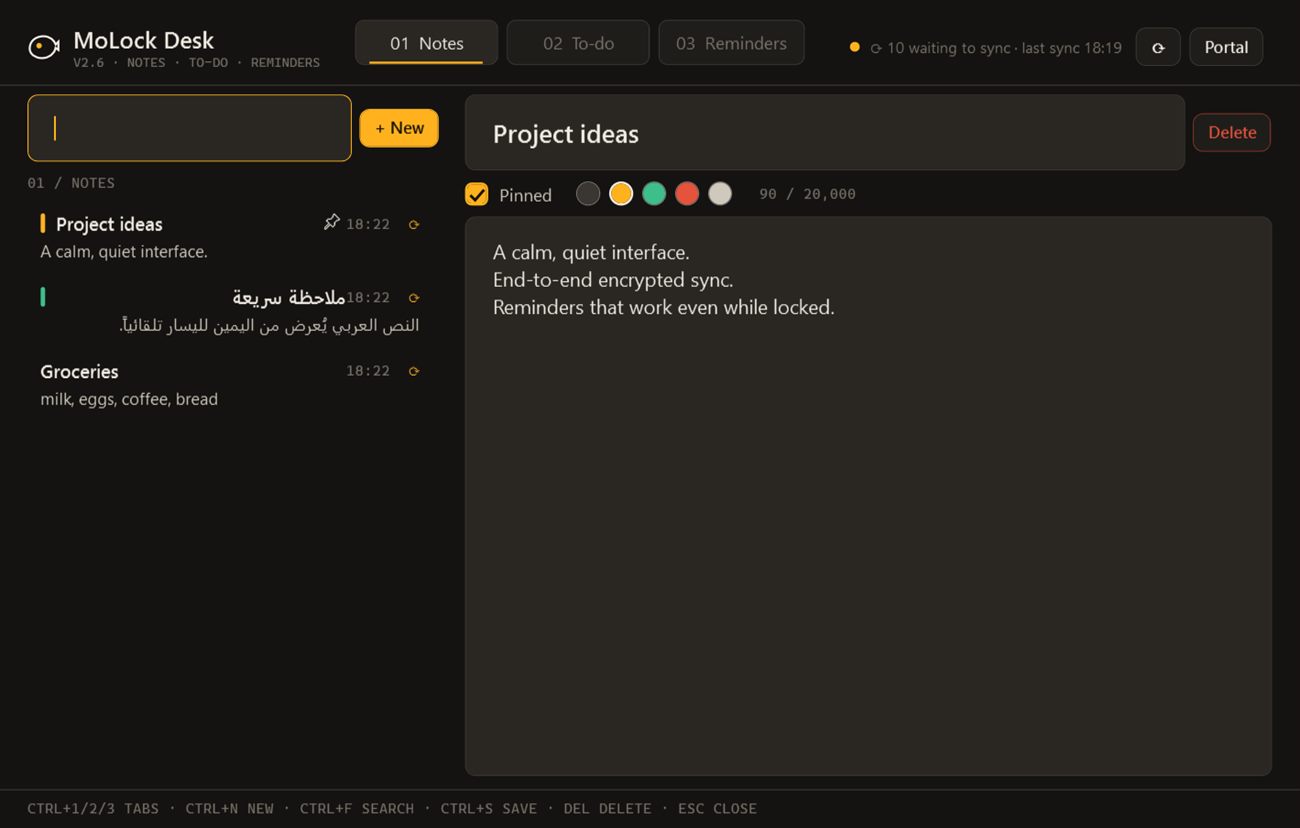
MoLock Desk: notes, to-dos and reminders on your PC — offline first, synced with your portal on its own.
- Five soundsChime, bell, soft, alarm or silent — at the volume you choose.
- Flexible repeatsOnce, daily, weekdays, weekly or monthly.
- Over the lock screenA calm banner over the lock screen that opens nothing and reveals nothing else.
- A copy on TelegramOptional per reminder — and create one with
/remind 18:30 … - Offline firstEverything works on your PC and syncs when the connection returns.
06 / 06Questions
About the portal
What is the personal portal?
A private page you open from any browser, on your phone or any other device, to view and edit your notes, to-dos and reminders and review a history of every attempt to unlock your PC. Your portal address and personal code (it looks like XXXXX-XXXXX) are shown in MoLock's Settings, and you sign in with a portal password that you set in MoLock on your PC. The portal is entirely optional. Nothing in it can lock or unlock your PC, and a service outage never affects locking. Learn about the portal.
Can the developer or anyone else read my notes or see my photos in the portal?
No. Your notes, to-dos, reminders, history details and photos are encrypted on your PC before they leave, and they are decrypted only on your PC or in your own browser after you sign in. The service stores only scrambled data it cannot read, and your portal password never leaves your browser or PC. To be completely open, this is what the service can see: that an item exists, its type (note, to-do or reminder), when it changed and its size. For the unlock history: the time, the kind of result and whether there is a photo. For portal sign-ins: the time, whether it was allowed or denied, the approximate country and city, and the browser type. Your IP address itself is never stored. How your data is protected.
What does the unlock history in my portal show, and how long is it kept?
Every attempt to unlock your PC: a wrong password, a correct unlock, the secret quick unlock, an unlock from Telegram, the recovery code, the duress password or tampering, each with the time and, when there is one, the photo. The history is kept for 30 days (the newest 300 attempts). It is uploaded only while "Keep an encrypted history in my portal" is on. That option is on by default once you set a portal password, and nothing is uploaded before then. You can turn it off at any time in Settings.
What if I forget my portal password?
Nobody can recover it, not even the developer, because it is never sent to us. Don't worry, though: your PC still holds your data, so simply set a new portal password in MoLock on your PC. Changing the portal password also signs out every open portal session on every device.
How do I know if someone signs in to my portal?
Your Telegram bot reports every portal sign-in, allowed or denied, with the time, the approximate location and the browser type, and the portal itself lists recent sign-ins, allowed and denied. Five wrong passwords lock the portal for 15 minutes, and a portal session lasts 12 hours at most. If you see a sign-in you don't recognise, change your portal password in MoLock and every session is signed out.
How do reminders and to-dos work, and do they show on the lock screen?
Add them in MoLock Desk, the new notes, to-dos and reminders window, in your portal, or from your bot with /remind and /todo. Each reminder has its own time and sound (chime, bell, soft, alarm or none) and can repeat daily, on weekdays, weekly or monthly. When it is due, it appears even over the lock screen as a view-only banner that never unlocks anything, and you can have a copy sent to Telegram too. Step-by-step guide.
Do my notes work without internet?
Yes. Notes, to-dos and reminders are saved on your PC first, so they work, and reminders go off on time, without any connection. When you are back online they sync with your portal automatically, and edits you make in the portal reach your PC within moments.