Devices and drives
- Local Disk (C:)Local disk
- Data (D:)Local disk
- MoLock Vault (M:)Unlocked · locks with MoLock
The vault locks itself the moment the screen locks — and remotely from your account
Why a "private" folder is not private
Most of us have one: a folder buried a few levels deep, named something dull, holding the scans of an ID card, a contract, tax papers, a few personal photos. It feels hidden. It is not. Anyone who sits at the unlocked PC can search for it, sort by date, or simply open the "Recent files" list. Hiding is not protection.
Windows offers strong encryption for whole disks, and you should use it if your PC supports it (more on that below). But it answers a different question. MoLock Vault is built for the everyday situation: the PC is on, you have stepped away or handed it to someone for a minute, and a handful of files should simply not be readable.
What the vault is
When you create a vault, MoLock adds a new drive to This PC, next to your usual disks, with its own letter and the name MoLock Vault. There is no special app to learn: you save a document to it from Word, drag photos into it in File Explorer, open a PDF from it in your browser. To every program, it is just a drive.
Devices and drives
- Local Disk (C:)Local disk
- Data (D:)Local disk
- MoLock Vault (M:)Unlocked · locks with MoLock
The vault locks itself the moment the screen locks — and remotely from your account
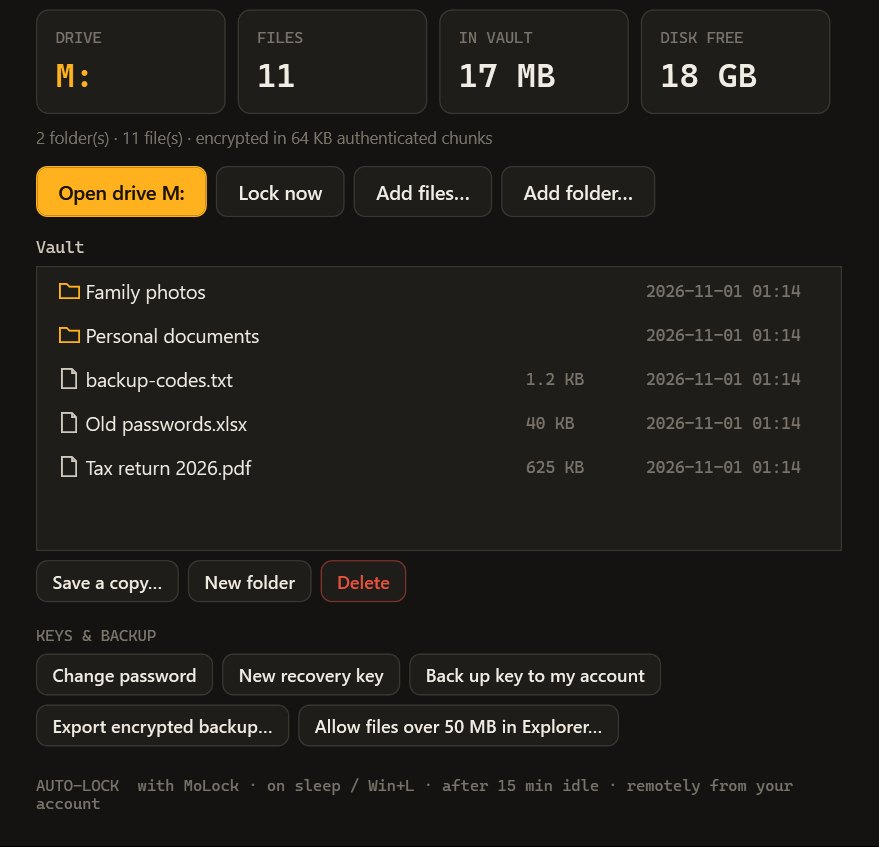
The difference is underneath. Every file you put in the vault is encrypted before it touches the disk. While the vault is unlocked, MoLock decrypts files as programs read them, so you notice nothing. When the vault is locked, what is left on the disk is scrambled data that means nothing without your password.
Locked when you are not there
A vault that you have to remember to lock is a vault that will often be open. So MoLock ties it to the thing it already does well: when MoLock locks, the vault locks. Step away and let the idle timer lock your screen, press your lock shortcut, lock from Telegram or from your account — the vault closes at the same moment. It also locks when the PC goes to sleep, when you press Win+L or switch user, and after a period without activity that you choose. Every unlock, and every wrong password, is reported to you.
When you come back, you open the vault again with its password whenever you need it. One practical habit follows from this: save documents you are editing from the vault before you step away, because the vault closes with the lock — a lock that waits for permission is not much of a lock.
A vault that you have to remember to lock is a vault that will often be open.
What to keep in it
The vault is best for a focused set of files that would hurt if someone else read them, not for your entire documents folder. Good candidates:
- Scans of passports, ID cards, residence permits and driving licences.
- Contracts, payslips, bank statements and tax documents.
- Medical reports and prescriptions.
- Exported recovery codes for your online accounts, and any written-down secrets you would otherwise keep on paper.
- Private photos and videos you do not want to appear when someone scrolls through your Pictures folder.
- Client files you are obliged to keep confidential.
Programs you install, games and large media libraries do not belong there: they gain nothing from it and make the vault bigger than it needs to be.
The honest part: your password and your recovery key
Strong encryption has one consequence that is worth saying plainly. Without your password or your recovery key, the contents of the vault cannot be opened. Not by a repair shop, not by a clever tool, and not by the developer. That is exactly what makes it worth using, and it is also why these precautions matter.
- Choose a password you will remember A long phrase of several unrelated words is both stronger and easier to remember than a short jumble of symbols. Store it in your password manager as well.
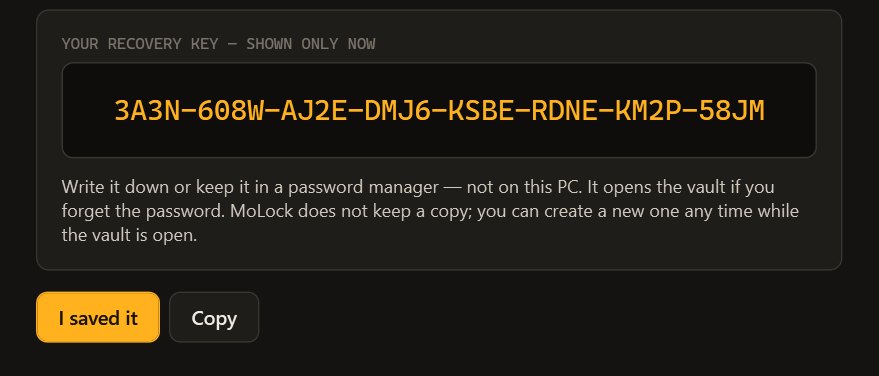
- Save the recovery key the moment you see it When you create the vault, MoLock shows a long recovery key exactly once. It opens the vault if you forget the password. Write it down or keep it in a password manager — not on the same PC. MoLock keeps no copy, and you can create a new one at any time while the vault is open.
- Optionally, back the key up to your account With "Back up key to my account", the vault key is stored in your MoLock Account encrypted, so it is useless to anyone without your account password.
- Keep a backup of what matters Encryption protects against people, not against a failing disk or a lost laptop. The Vault window can export an encrypted backup; keep it, or copies of your most important files, in a second place you trust.
Vault vs Windows drive encryption
Windows can encrypt entire disks (BitLocker, or "Device encryption" on many laptops). It is an excellent idea, and the two work well together, because they protect against different things:
| Situation | Windows drive encryption | MoLock Vault |
|---|---|---|
| Laptop stolen while switched off | Protects the whole disk | Vault files stay encrypted |
| Someone uses your PC while it is on and signed in | Everything is readable | Vault stays locked unless they know its password |
| You step away and MoLock locks the screen | No change | Vault locks at the same moment |
| Scope | The entire disk | The files you choose |
In short: drive encryption protects a disk that has left your hands; the vault protects a set of files while the PC is in use. If your PC offers drive encryption, turn it on — MoLock's PC health & security score tells you whether it is active — and use the vault for the files that deserve a second lock.
A few good habits
- Move, don't copy. After putting a file in the vault, delete the original elsewhere. For really sensitive files, use MoLock's shred option in the right-click menu so the old copy cannot be recovered.
- Mind your downloads. Documents you receive land in Downloads first. Move the sensitive ones into the vault and shred the rest.
- Share with an expiring link. When you need to send a vault file to someone, a share link encrypted with its own key is far safer than a permanent attachment.
- Lock before handing over. Lending your laptop for a minute? Lock the vault first, or simply lock MoLock and unlock it again.
- Very large files. File Explorer opens files of up to 50 MB from the vault drive (a Windows default). For bigger files, use the Vault window, which can also raise that limit for you.
Getting started
Update to MoLock 2.7, open Settings → MoLock Vault and create your vault with a password of your choice. It appears in This PC straight away. Save the recovery key, move a first file in, then lock it and watch the drive disappear from This PC: that is the whole point.
- See the vault next to the other new tools on the Tools page.
- Link your PC to a MoLock Account to lock it remotely.
- More practical advice: 10 everyday privacy habits for Windows users and the privacy guide.
- New to MoLock? Download it free.