Everyday tools. Built into MoLock.
Compress a photo before you send it, capture your screen and blur what shouldn't be seen, get back what you copied an hour ago, and keep sensitive files in a vault that locks with your screen. All on your PC — no extra apps, and no uploading your files to unknown websites.
01 / 08Right-click
Right-click. Done.
The MoLock menu appears when you right-click any file or a group of files, and works right on your PC — so you never upload private photos to a converter site run by who-knows-whom.
- Compress images with a quality sliderSee the resulting size before you save and pick your balance of quality and size.
- Resize & convertResize one image or many at once, and convert between common formats.
- Strip location from photosRemove the location hidden inside a photo before you share it.
- PDF from imagesTurn photos of documents into one tidy PDF.
- Video & audioConvert and compress video and audio, or make a GIF from a clip.
- File fingerprintsCheck that a file you downloaded is exactly the original, unchanged.
- Encrypt with a passwordLock any file with a password before you send or store it.
- ShredDelete sensitive files so they are very hard to recover.
- Share linkAn encrypted link with an expiry, an optional password and a download limit.
Before5.8 MBAfter740 KB
Quality80
- Long edge 2048 px
- Remove location data
- Keep the original
PreviewSave a copy
A phone photo is often several megabytes. Resized and compressed at a sensible quality it usually becomes a small fraction of that, with no difference you would notice on screen. Read the full guide.
02 / 08Capture
PrintScreen, reinvented.
Press PrintScreen to pick a region, a window or the whole screen, then add an arrow or text and blur an account number or a private message before you share. Or record the screen as a video or a GIF.
- Replaces PrintScreenA region, a window or the whole screen — and you can give the key back to Windows in Settings any time.
- AnnotateArrows, text and highlights to show exactly what you mean.
- Blur sensitive partsBlur numbers, names and messages before you share.
- Record as videoRecord your screen as an MP4 to explain steps or report a problem.
- Animated GIFsShort, light clips that play in any chat or email.
- Copy, save or shareTo the clipboard, to a file or as an encrypted share link.
RegionWindowFull screenRecordPrintScreen
Account no. •••• •••• 4821
Click hereArrowTextHighlightBlurShare
After you stop: trim, compress, turn into a GIF or share with an encrypted link
03 / 08Clipboard
Everything you copied. Except the secrets.
A history you can search and pin from, ready-made snippets, text transforms and a fix for text typed in the wrong keyboard layout — with encrypted sync to your phone.
- Clipboard historyText, links and images you copied, ready to paste again.
- Pins & snippetsYour address and frequent replies, one click away.
- Text transformsChange case, clean formatting and trim spaces.
- Arabic/English layout fixTyped Arabic with the keyboard on English (or the reverse)? Fixed in one click.
- Sync to your phoneEnd-to-end encrypted items that expire after 24 hours by default.
- Sensitive data never storedAnything that looks like a password or a card number stays out of the history.
Search history…
- Office address — 12 Tahrir St, DokkiSnippet · pinned
- molock.pages.dev/en/blog/Link · 1 min ago
- Meeting tomorrow at 10 amText · 5 min ago
- Screenshot 1280×720Image · 12 min ago
- A sensitive item was not savedLooks like a password
ABCabcPlain textFix layout
Sync to phone · encrypted · 24 h
Keyboard-layout fix
ENhgsghl ugd;l
عالسلام عليكم
04 / 08Sticky notes
On your desktop. And in your pocket.
Coloured notes that stay on top or fold away, on the screen you choose, with a reminder if you like. They appear, encrypted, in your account so you can read them on your phone.
- Desktop sticky notesWith colours and reminders, on top or collapsed, on the screen you choose.
- Synced notesYour sticky notes appear, encrypted, in your account and stay where you put them on your PC.
Call the accountant
18:30Guest Wi-Fi card is in the second drawer
Pitch ideas:
1. Opening
2. Numbers
05 / 08PC health
One score. Clear fixes.
MoLock checks what matters — Windows Security, firewall, drive encryption, updates, space, temporary files and startup apps — and suggests a fix in one click. It also prepares a morning brief.
- Security scoreWindows Security, firewall, drive encryption and updates — in one number.
- Space & temporary filesFree space and temporary-file size, with one-click clean-up.
- Startup appsHow many programs start with Windows and slow it down.
- Daily briefWeather, today's reminders and to-dos and overnight attempts — on the lock screen or in Telegram at a time you choose.
86Security score
- Windows SecurityOn
- FirewallOn
- Drive encryptionOff
- Free space41 GB
- Temporary files3.2 GB
- Startup apps9
Clean temporary filesOpen Windows Security
Daily brief07:30
Good morning
- Sunny · 24° · high 29°
- 3 reminders today · first: 10:00 team meeting
- 2 open to-dos
- Overnight: 2 wrong attempts at 02:14
06 / 08Vault
An encrypted drive that locks with your screen.
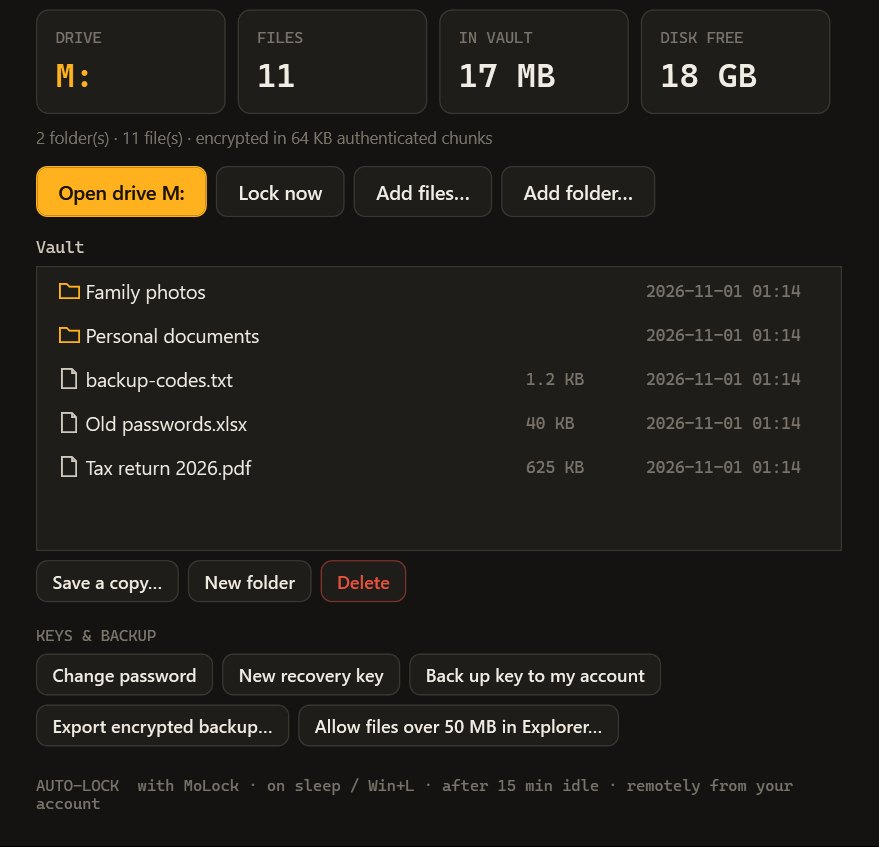
The MoLock Vault is a drive in This PC. Open it with your password and use it like any drive; the moment the screen locks, it locks too — and you can lock it from your account if you left it open.
- A drive in This PCUse it like any drive: open and save files as usual.
- Fully encryptedWhat is inside is unreadable without your password.
- Locks with MoLockWith the screen lock, on sleep or Win+L, and after an idle time you choose.
- Lock it remotelyFrom your account or the bot if you left it open — and every unlock or wrong password is reported to you.
- Recovery key & backupsA recovery key shown once, an encrypted key backup to your account and an encrypted export.
Without the password or the recovery key (shown to you once), the vault's contents cannot be opened — that is what makes it safe. Keep the recovery key away from the PC, and keep a backup of important files.
Devices and drives
- Local Disk (C:)Local disk
- Data (D:)Local disk
- MoLock Vault (M:)Unlocked · locks with MoLock
The vault locks itself the moment the screen locks — and remotely from your account
08 / 08Questions
About the tools
Why does PrintScreen now open MoLock's capture tool?
In 2.7, PrintScreen opens MoLock's capture tool: a region, a window or the whole screen, with arrows, text and highlights, blur for sensitive parts, or a screen recording as video or GIF. If you prefer the usual Windows behaviour, you can give the key back to Windows in Settings at any time. All the tools.
What do the right-click tools do?
Right-click any file to find the MoLock menu. For images: compress with a quality slider and a size preview, resize, convert between formats, remove the hidden location data, and combine several images into a PDF. For video and audio: convert, compress and make GIFs. For any file: check its fingerprint to confirm it is intact, encrypt it with a password, shred it for good, or create an encrypted share link. It all runs on your PC; nothing is uploaded unless you create a share link.
Is the Vault safe, and what if I forget its password?
The MoLock Vault is an encrypted drive that appears in This PC when you open it, and you use it like any other drive. While it is locked, its contents are fully encrypted and unreadable. It locks automatically whenever MoLock locks, and you can lock it remotely from your account. When you create it, MoLock shows a recovery key once, which opens the vault if you forget the password, and you can also back the vault key up to your account, encrypted. Without the password and without the recovery key, its contents cannot be opened by any means — not even by the developer. Keep the recovery key somewhere safe other than the PC itself, and keep backups of important files.
Does the clipboard keep my passwords?
No. The advanced clipboard skips what looks like sensitive data, such as anything copied from a password manager and card numbers, so it is neither kept in the history nor synced. What you choose to sync to your phone is end-to-end encrypted like your notes and is deleted automatically after 24 hours by default (pinned items after 30 days). You can clear the whole history at any time.
What does the PC health score check?
It builds a score from 0 to 100 out of things you can fix: free disk space, the size of temporary files, how many apps start with Windows, the status of Windows Security, the firewall and drive encryption, pending updates, how long the PC has run without a restart, and the processor temperature where available. Each item comes with a short tip, plus buttons to clean temporary files or open Windows Security.
Do these tools slow my PC down?
No. The tools only run when you use them: right-click tools start when you choose an action and stop when it's done, capture starts with PrintScreen, and the health check runs at long intervals. You can switch off any tool you don't need in Settings.
Do sticky notes sync with my account?
Yes. Sticky notes stay on your desktop with their colour, position and size; you can keep them on top, collapse them or add a reminder. When the PC is linked to your account they sync end-to-end encrypted, so you can read and edit them in the browser and see them on your other PCs.
Free · no ads
Try MoLock today. It's free.
Windows 10 & 11 · No admin rights · Arabic & English
Download MoLock — free