Walk-away lock, done right
A lock that follows you sounds simple until it locks while you are reading, or stays open because your phone is still on the desk. Here is what goes wrong with single-signal proximity locks, and how MoLock decides that you have really left.
Mahmoud Mohamed · 9 min read
Present
3 of 4 signals agree you are here
- Your phone · Galaxy A54Bluetooth · near
- Watch · Galaxy WatchBluetooth · near
- Phone on this Wi-FiHome networkYes
- Camera presenceOptional · on this PC onlyOff
- Keyboard & mouseActive seconds agoActive
Locks after a short countdown when the signals agree you have left
Why most walk-away locks end up switched off
The idea is old and good: your PC should lock itself when you leave, because the moment you most need a lock is the moment you forget to press Win+L. A colleague calls you over, the doorbell rings, and the screen sits open with your inbox on it.
Most proximity locks, including the simple one built into Windows, solve this the obvious way. They watch one paired phone over Bluetooth, and when its signal drops below a fixed line, they lock. In a demo it works. At a real desk it tends to fail in one of three ways:
- Flicker. Bluetooth signal strength jumps around from second to second even when nothing moves. If you happen to sit near the line, the lock keeps deciding that you left and came back.
- False locks. Radio is absorbed by bodies, pockets, bags and walls. Turn in your chair or drop the phone in a drawer, and the signal can fall as if you had left the room.
- Missed locks. The opposite case is worse. You leave the phone charging on the desk and walk to a meeting; to a phone-only lock, you never left.
After a few false locks, people turn the feature off. So the real design goal is not "lock as fast as possible". It is "lock only when we are sure, and make being wrong cheap".
A walk-away lock that annoys you is one you will switch off before the day it matters.
Presence is a judgement, not a single reading
MoLock's presence feature looks at several independent signals and combines them into one verdict, shown in the app as something like Present · high confidence. Each signal is strong where another is weak.
| Signal | What it is good at | Where it is weak |
|---|---|---|
| Bluetooth devices: a phone, watch, fitness band or earbuds, already paired or picked from a scan | Following the things you carry | Noisy, blocked by bodies and walls; some phones let it sleep |
| Your phone on the same Wi-Fi | Confirming that you are in the building at all | Says nothing about which room you are in |
| Keyboard and mouse activity | Showing that someone is at the PC right now | Cannot tell who that someone is |
| Camera (opt-in) | Seeing whether a person is in front of the screen | Needs a webcam and reasonable light |
Bluetooth readings are smoothed over time, so one bad sample never counts as a departure. And MoLock uses two thresholds instead of one: the signal has to fall clearly below an "away" line before you count as gone, and rise back above a separate, stronger "back" line before you count as returned. The gap between the two lines is what stops the flicker.
One habit helps with any proximity lock, MoLock or not: follow something you wear, not only something you put down. A watch or a band leaves the room when you do; a phone very often does not. MoLock can follow several devices at once, so your phone and your watch can both have a say.
Teach it where your desk ends
Bluetooth signal strength is not a distance. The same phone reads differently in a small flat and an open-plan office, so a fixed "out of range" number is a guess about a room the lock has never seen.
So MoLock asks you to show it. In the calibration walk test you sit at your desk, walk away to the point where you would consider yourself gone, and come back. MoLock watches how your devices' signals change along the way and places the away and back thresholds around your actual space.
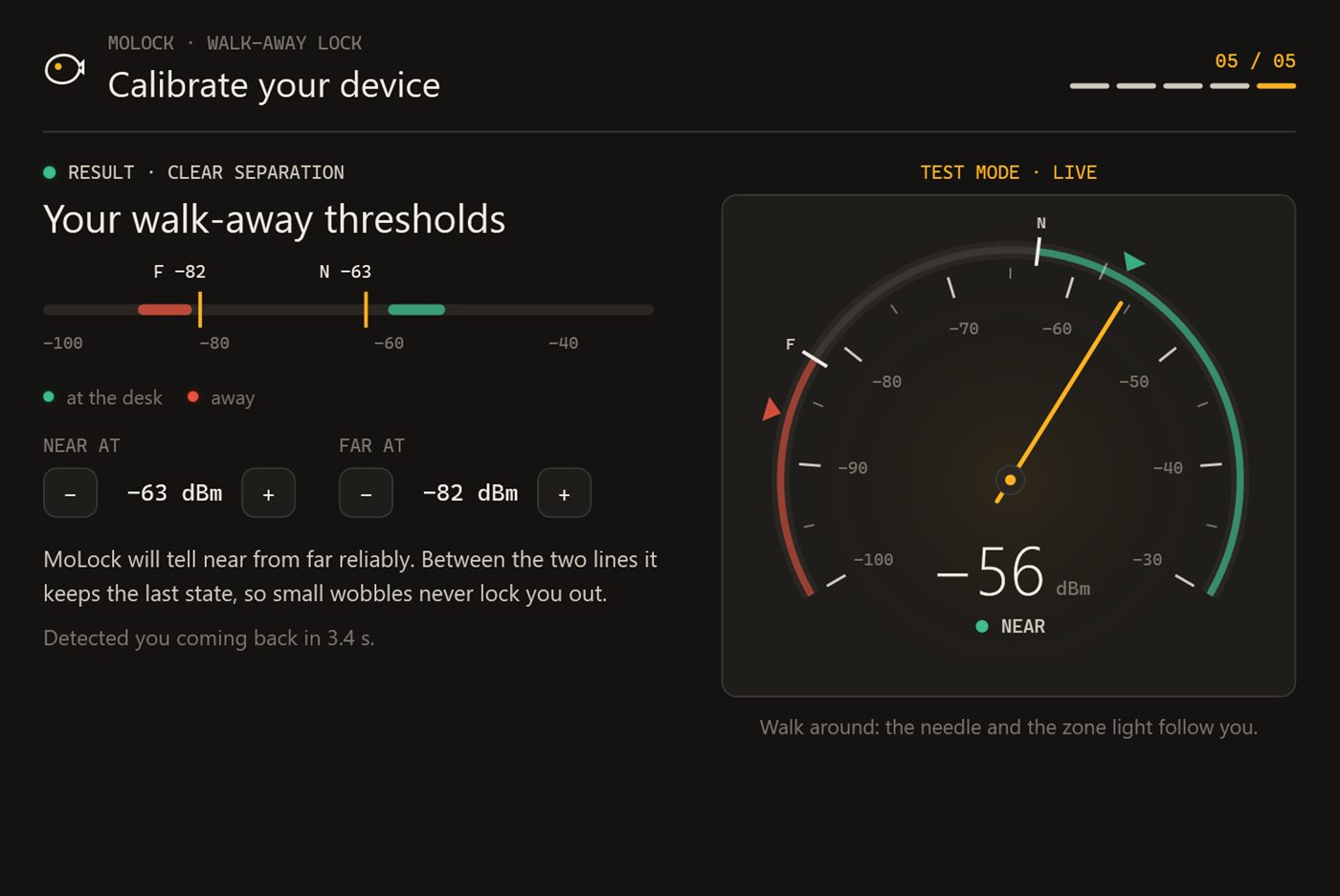
Three things make the walk more accurate:
- Carry your devices the way you normally do. If your phone lives in your pocket during the day, keep it there. Holding it out in front of you gives a stronger signal than real life ever will.
- Walk your real route. The walls and furniture between your desk and the door are part of what MoLock needs to learn.
- Walk again when the space changes. A new desk, a new room or a new phone is a new radio environment.
Leaving: a countdown you can cancel
When the signals agree that you have gone, MoLock does not lock on the spot. It shows a small toast in the corner of the screen, such as "You seem to be away — locking in 8 s", with a Cancel button, and counts down.
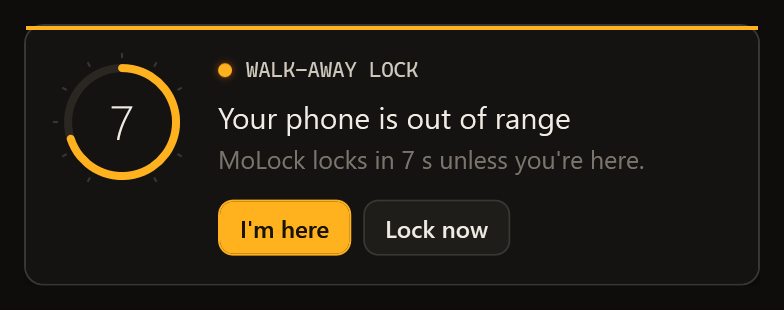
This grace period is what makes a wrong guess cheap. If you were only stretching, one click on Cancel keeps you working; if you really left, the PC locks behind you. If it keeps appearing while you are seated, repeat the calibration walk or add a device you wear.
Coming back: fast, but never careless
When MoLock sees your devices return, the lock screen greets you with Welcome back, and, if you have allowed it, a quick unlock: a single key or a short PIN, accepted only within a number of minutes that you choose. Step away for tea and you are back in a moment; disappear for the afternoon and the full password is needed again.
14:07
Welcome back
EnterPress to unlock quickly · available for 2 min
Your phone and watch are back · away for 11 min
No quick unlock after failed attempts or a remote lock
Quick unlock is deliberately limited. It is never offered when the lock was caused by failed password attempts, because that means someone may already have tried to get in. And it is never offered after a remote lock: if you locked the PC from your phone, you did it on purpose, and a single key should not undo that. In both cases the normal unlock is the only way back.
If you would rather not type at all, you can also turn on an optional tap on Telegram to let yourself back in. It works in the same spirit as approving an unlock from your phone.
When someone else is at your keyboard
Combining signals has a useful side effect: MoLock notices when they disagree. If your phone has left but the keyboard is busy, there are two possibilities. Either you walked back without your phone, or someone else is using your PC. Rather than guess, MoLock tells you, with an alert such as "Someone is typing while your phone is away" and two buttons: 🔒 Lock now and Open in dashboard.
- ⚠️ DESKTOP-MO · Someone is typing
Your phone has been away for 6 min and the keyboard is in use.🔒 Lock nowOpen in dashboard - ✅ Lock now — the PC is locked
The bot's button does exactly what the dashboard's button does. Each button works once, and the message is edited to show the result, so you never wonder whether your tap went through. You can also send /presence to the bot at any time to open a small menu with 🔒 Lock now, 📋 Summary and Open in dashboard. Only the PC's owner can use them.
Later, the presence page of your dashboard shows each day as a timeline of present and away bands, with history kept for up to 400 days. Short away blips while you were seated mean the thresholds need another walk. In the same dashboard you decide how presence notifications reach you (on the bot, on the web, and from which level up) and set quiet hours such as 23:00–07:00, when only alert-level messages get through, or none at all.
The camera signal, and what it never does
Why offer a camera at all? Because it covers the one case radio cannot: your phone is still on the desk and you are not. If you would rather not use one, Bluetooth, Wi-Fi and activity work without it. The same on-device analysis powers the privacy guard's protection against people reading over your shoulder, covered in our guide to the privacy guard.
The honest limits
- The Bluetooth signal needs Bluetooth. Many desktop PCs have none. A small adapter solves that, or you can rely on Wi-Fi, activity and the camera.
- Radio distance is approximate. Walls, pockets and bodies all change the readings. Calibration narrows the error; it does not remove it. That is why the grace countdown exists.
- Some phones put Bluetooth to sleep. Battery savers on some phones quiet Bluetooth when the screen is off. This is the main reason MoLock never relies on one signal, and why a watch or a band is often the steadier device.
- A one-key unlock is a convenience, not a lock. If you choose a single key for Welcome back, anyone who sits down within your window while your devices are nearby can use it. In a shared office or a busy home, choose a PIN, or a short window.
- It complements your password; it never replaces it. Presence decides when to lock. Carrying your phone does not open the PC, and the full password is always the final word. Win+L is still the fastest lock; presence is the safety net for when you forget.
Setting it up
- Choose the devices to follow. In MoLock on the PC, or on the presence page of your dashboard, pick devices that are already paired, or choose them from a scan. Add a watch, band or earbuds if you have them.
- Add your phone on Wi-Fi. Turn on the Wi-Fi signal so that MoLock can also notice your phone on the same network.
- Do the calibration walk. Phone where it normally lives, along your real route, out to where "away" begins and back again.
- Decide about the camera. Leave it off, or switch it on for the phone-on-the-desk case.
- Set your Welcome back rules. Quick unlock with one key or a PIN, the number of minutes it stays available, and whether a Telegram tap may let you in.
- Tune notifications. In the dashboard, choose where presence alerts go and set your quiet hours.
Everything works offline on the PC as well. Changes you make in the dashboard are sent to the PC, and if it is switched off they wait and arrive when it connects, for up to 7 days. The presence page sums it all up; for the other half of your day at the desk, read Screen time without guilt.