Privacy guard: cameras, microphones and shoulder surfers
The webcam light tells you that something is watching, not who. MoLock's privacy guard answers the real questions — which app, when, and was that supposed to happen — and adds a quiet defence against the person sitting next to you.
Mahmoud Mohamed · 10 min read
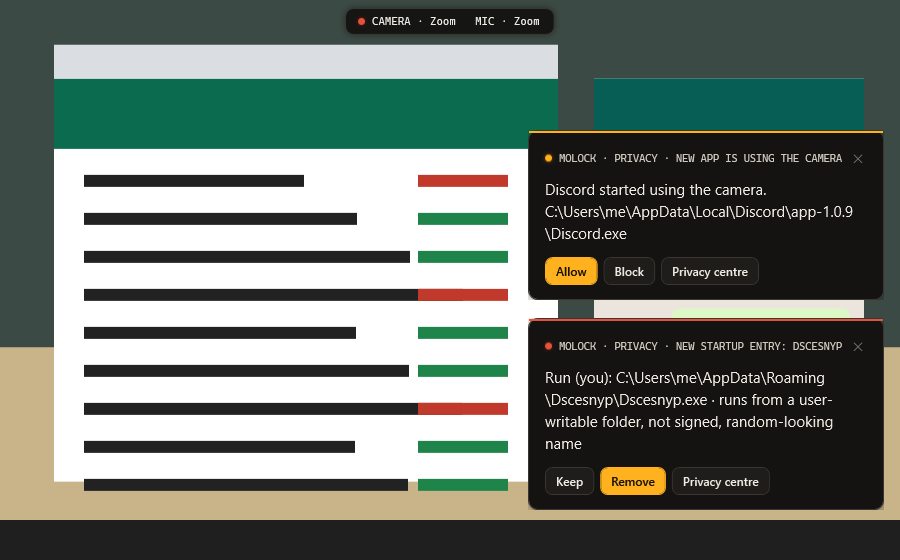
The camera light only tells half the story
Most of us trust the small light beside the webcam. When it is dark, the camera is off; when it glows, something is watching. As a rule of thumb that is fine, but it leaves three gaps that matter.
The first is attention. The light only helps if you happen to be looking at it, and a camera that switches on for a few seconds while you read an email can come and go unnoticed. The second is the microphone, which has no light at all. Windows shows a small microphone icon in the taskbar while an app is listening, and its privacy settings list apps that recently used the camera or microphone, but both only help if you remember to go and check. The third gap is the most important: the light says nothing about which app is behind it. A video call you started yourself and a program you have never heard of look exactly the same.
The question worth answering is not "is the camera on?" but "who turned it on, when, and was that meant to happen?" That is the job of MoLock's privacy guard.
The camera and microphone watchdog
The watchdog keeps a plain log of every time an app uses the camera or the microphone: the app's name, when it started and how long it lasted. Open the privacy guard on the PC, or the privacy page of your dashboard, and you see a readable list — your meeting app this morning, a browser during lunch, the voice recorder you used for a quick memo.
From that list you build an allow-list: the apps you expect to use your camera and microphone. For most people that is a meeting app, a browser and perhaps a dictation tool. Apps on the list go about their business quietly. When an app that is not on the list uses the camera or the microphone for the first time, MoLock alerts you on the PC and, if you wish, on Telegram. You then decide whether it belongs on the list or deserves a closer look.
A good allow-list is short. Add an app when you recognise it and use it on purpose; leave everything else off. An alert you can explain in two seconds — "that's the new meeting app work asked me to install" — costs you nothing. An alert you cannot explain is precisely the one you wanted to see.
One tap off, wherever you are
Sometimes you simply want the camera and microphone off: before a private conversation in the room, when you leave the PC at the office overnight, or when an alert arrives and you would rather think about it with the camera closed. MoLock puts Camera off and Mic off in three places:
- On the PC, in the privacy guard.
- In the dashboard, from any browser. If the PC is switched off, the change waits and is applied as soon as it connects again, for up to 7 days.
- In the Telegram bot. Send
/privacyand tap 📷 Camera off or 🎙 Mic off. Each button works once, the message is edited to show the result, and only the PC's owner can use it. The same menu offers 📋 Summary and Open in dashboard.
Both switches use Windows' own privacy setting for your Windows user — the same one you would find in Windows Settings. Apps ask Windows for the camera, and Windows says no. That is a real advantage, and it also has a limit, which we come back to at the end.
Shoulder surfers on trains, in cafés and in open offices
Not every privacy risk arrives through software. The most common one is a person: the passenger beside you on the train, a stranger at the next table in a café, a colleague walking behind your desk in an open-plan office. Screens are bright, text is large, and an email, a bank balance or a private chat can be read from further away than most people think.
The shoulder-surfing guard is MoLock's answer, and it stays off until you switch it on. Once enabled, it uses your webcam to detect faces in front of the screen. It looks for faces, not identities: it does not need to know who anyone is, only whether more than one person is looking.
- A second face looking at the screen → your sensitive windows are blurred or hidden until it is just you again.
- Your face gone → the PC locks, as if you had locked it yourself on the way out.
Which windows count as sensitive is your decision. The sensitive-apps list is where you name them — typically your password manager, your email, your chat apps and anything you use for banking. Everything else stays visible, so a glance from a passer-by does not interrupt a spreadsheet you would happily show anyone.
If you use MoLock's public Wi-Fi mode, it switches the privacy guard on for you when you join an untrusted network — see Who's on my Wi-Fi? for that side of the story. The same on-device detection can also act as one of the presence signals for the walk-away lock, if you choose; Walk-away lock, done right explains how it is combined with your phone, your watch and your keyboard activity.
The panic key and screen-sharing safe mode
Some moments leave no time for settings. Someone sits down beside you at exactly the wrong moment; a manager leans over your shoulder. The panic key is a single shortcut that applies an instant privacy blur: press it, and what was on the screen can no longer be read.
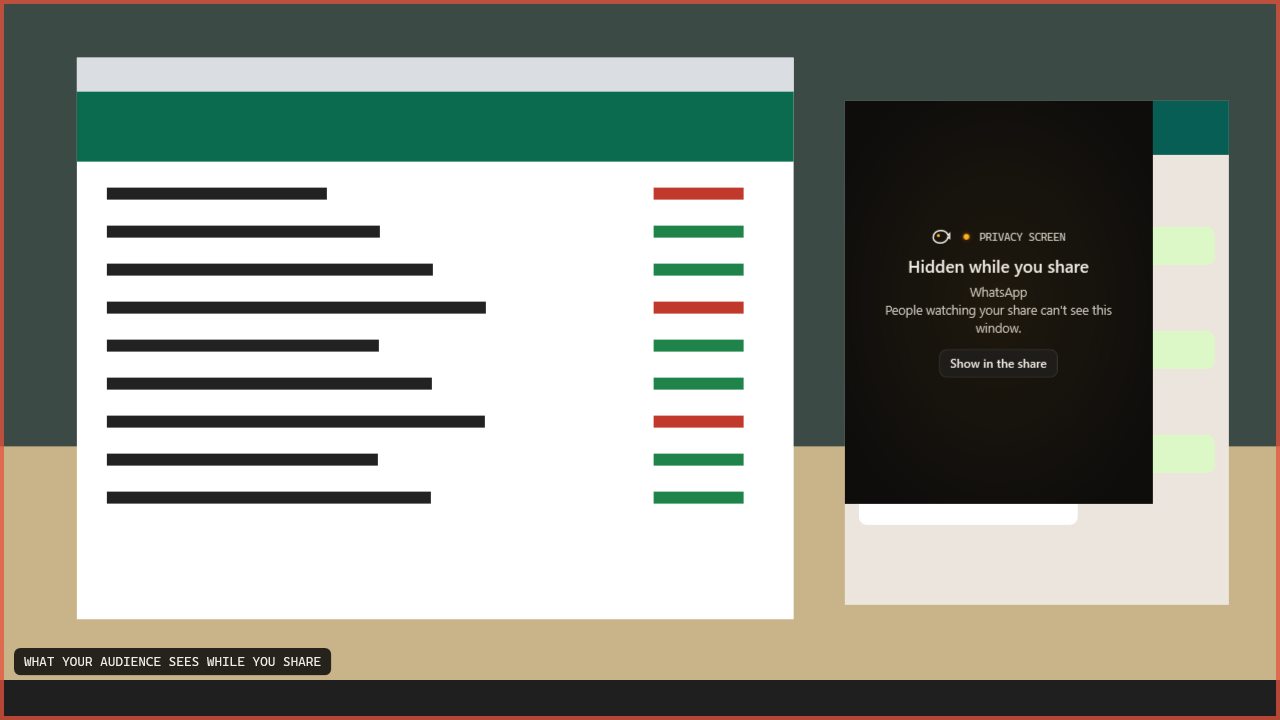
Screen sharing deserves protection of its own, because it is the one time you deliberately send your screen to other people. Screen-sharing safe mode is active while you share or record your screen. During that time, notifications, sticky notes and every window on your sensitive-apps list are hidden from what others see. The chat message that pops up in the middle of a presentation, the sticky note with your personal to-do list, the password manager you open out of habit — none of them end up in front of the whole meeting or in the recording afterwards.
Autostart watch: Keep or Remove?
A quieter privacy question is what runs on your PC without being asked. Programs can arrange to start with Windows in several ways: a startup entry, a shortcut in the Startup folder or a scheduled task. Most of them are fine — your cloud storage, your mouse or keyboard software, MoLock itself. Some are leftovers from an app you tried once. Occasionally, one is something you never meant to install.
Autostart watch notices when a new program sets itself to start with Windows and asks you about it, with two buttons: Keep and Remove.
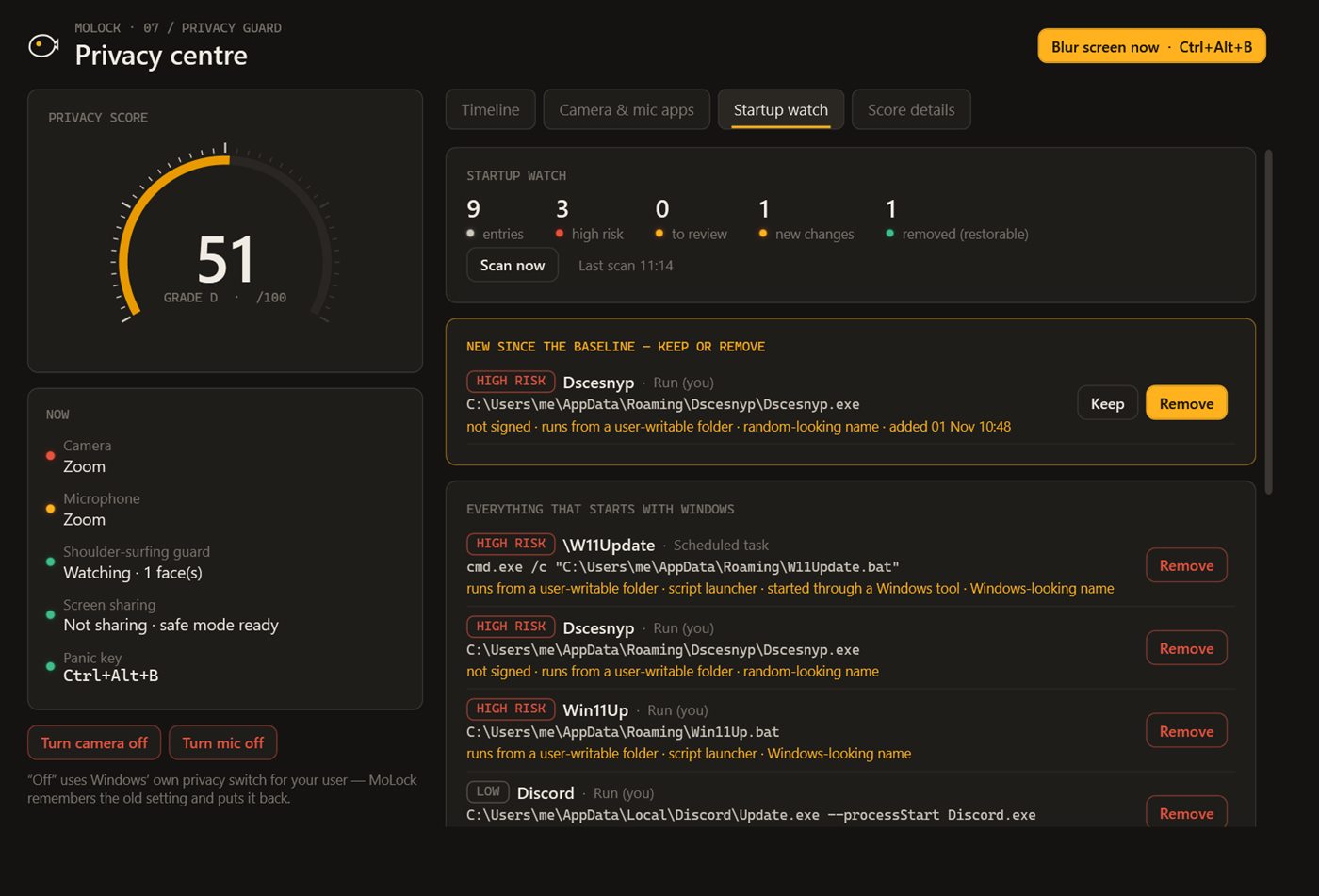
Deciding is usually quick if you ask four questions:
- Did you just install or update something? An alert that appears minutes after you installed a printer driver or a chat app is almost certainly that app. Keep it if you want it ready at startup; remove it if you would rather open it yourself.
- Do you recognise the name and the maker? A familiar program from a company you know is generally safe to keep. A vague name, a misspelt brand or a maker you have never heard of deserves a quick search before you choose.
- Does it need to run all the time? Plenty of programs add themselves to startup only to open a little faster. Removing them rarely loses anything and can make Windows start more quickly.
- Did it appear while you were not doing anything? A new startup program that arrives out of nowhere is the case to take seriously. Remove it, then run a full scan with your antivirus.
Removing a program from startup does not uninstall it; it only stops it launching by itself. If you change your mind, the program still opens normally when you start it.
Your privacy score and the dashboard
All of this comes together in a privacy score, shown inside MoLock's PC health view with a short checklist of what would improve it. It is not a grade to chase. It is a quick way to notice that something has slipped since you last looked.
The real question is not "is the camera on?" but "who turned it on, and was that meant to happen?"
The privacy page of your dashboard shows the current state, history charts kept for up to 400 days and every setting. That data is end-to-end encrypted: it is sealed on your PC with your account key, and the server stores only sealed data it cannot read. You also choose how alerts reach you — on Telegram, on the web, or both, and from which level (info, warning or alert) — and you can set quiet hours such as 23:00–07:00, during which only alert-level messages get through. Security messages about your account are always delivered.
The honest limits
- It cannot stop a phone camera. If someone photographs your screen, no software on the PC can prevent it. The shoulder-surfing guard reduces what a second face can read, but it is not a force field.
- Face detection needs a webcam and reasonable light. In a dark room, with the lens covered or with the camera pointing elsewhere, the guard cannot see faces and so cannot react to them.
- Camera off is a Windows setting, not a shutter. It uses Windows' own privacy switch for your Windows user, so it does not cover other Windows accounts on the same PC. For complete certainty, a sliding lens cover or unplugging an external webcam remains the most reliable option.
- An alert is a prompt to look, not a verdict. MoLock tells you that a new app used the camera or that a new program wants to start with Windows. It does not claim to know whether that app is harmful; that judgement stays with you, and with your antivirus.
How to set it up
- Update MoLock and open the privacy guard. If you do not have MoLock 2.9 yet, get it from the download page. The watchdog starts logging straight away.
- Build your allow-list. Use your camera and microphone normally for a day, then add the apps you recognise. From then on, only newcomers raise an alert.
- Fill in your sensitive-apps list. Password manager, email, chat, banking. This list drives the blur for shoulder surfers, the panic key and screen-sharing safe mode.
- Decide on the shoulder-surfing guard. If you often work on trains, in cafés or in an open office, switch it on and check that your webcam can see you in your usual light.
- Pick a panic key you will remember. Choose a shortcut you can press without looking.
- Choose how alerts reach you. In the dashboard, set the level and quiet hours for privacy alerts, and connect the Telegram bot if you want
/privacyin your pocket.
For the full feature list, see the privacy guard page. For the small daily habits that make all of this work better, read 10 everyday privacy habits for Windows users, and the privacy policy lists exactly what MoLock keeps.