Your PC, in any browser. Even on your phone.
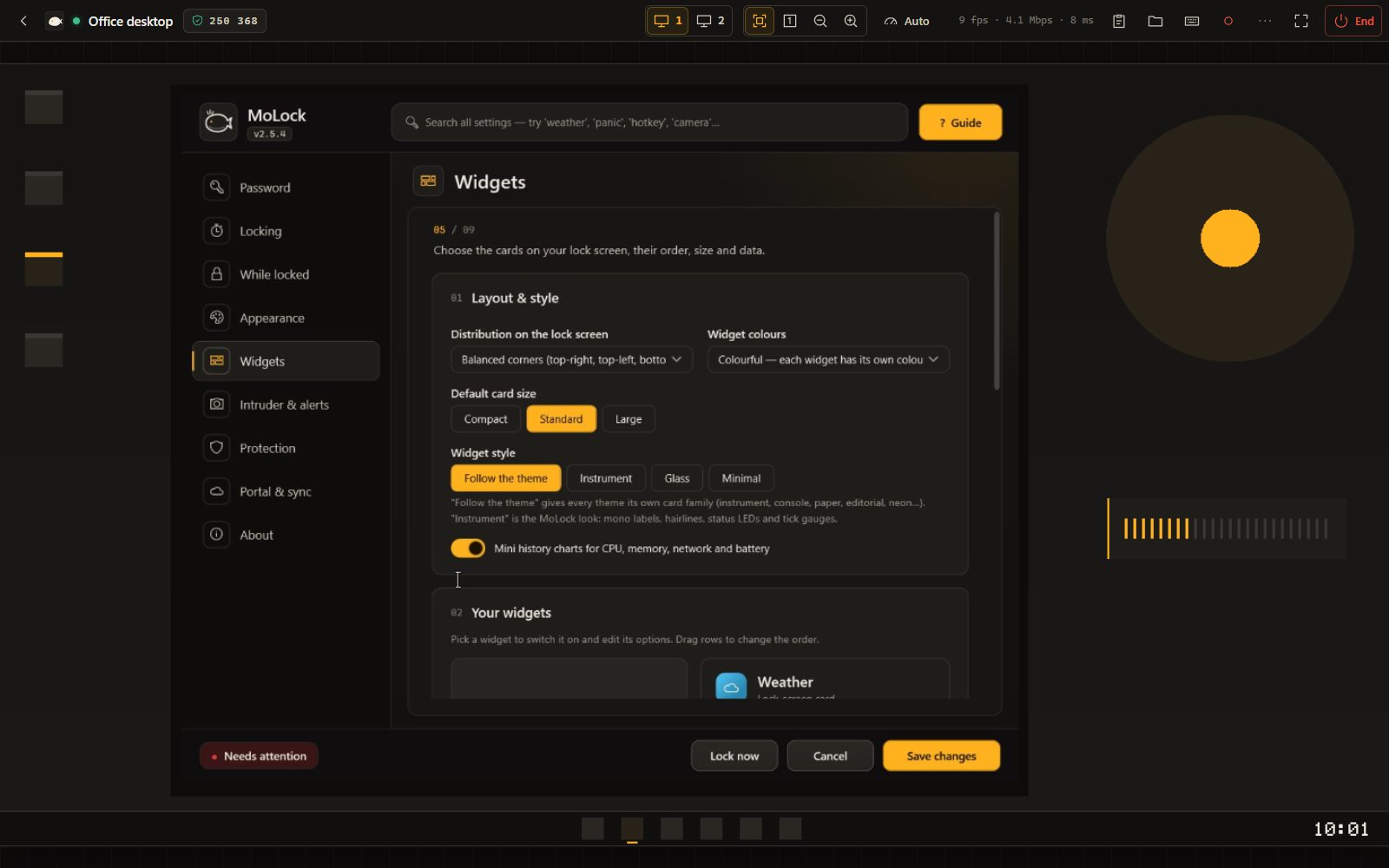
MoLock Remote gives you full control of your PC from your MoLock Account: see the screen, use the mouse and keyboard, move files — from a laptop, a phone or a tablet. End-to-end encrypted, nothing to install, and never hidden from whoever is at the PC.
New in 2.9Free · any modern browser · phones & tablets
- Apps to install0
- Quality presets5
- Safety code6DIGITS
- Cost0FREE
01 / 10How it works
Three steps. No new app.
Signing in to your account is the permission — no second approval on the PC, no extra password. That is exactly why a session is never hidden.
- 01Step 1/3
Update and link your PC
Install MoLock 2.9 and link the PC to your account in Settings → Account. Remote is on by default once linked, and you can switch it off any time.
- 02Step 2/3
Open your account in any browser
On your phone or any computer: sign in with your password and Telegram code, pick your PC and choose Remote. The PC proves its identity and the picture appears in moments.
- 03Step 3/3
Work as if you were there
Open apps, copy and paste, move files. The PC shows an indicator for the whole session and your Telegram gets a message. When you are done, press End.
02 / 10What you can do
Everything on the screen. In your hand.
MoLock Remote is not just screen sharing — it is your whole PC, with tools made for working from somewhere else.
Full control
Mouse, keyboard, double-click, drag and scroll — as if you were sitting there.
Multiple monitors
Switch between the PC's monitors in one tap, each at its own size and scale.
Adaptive quality
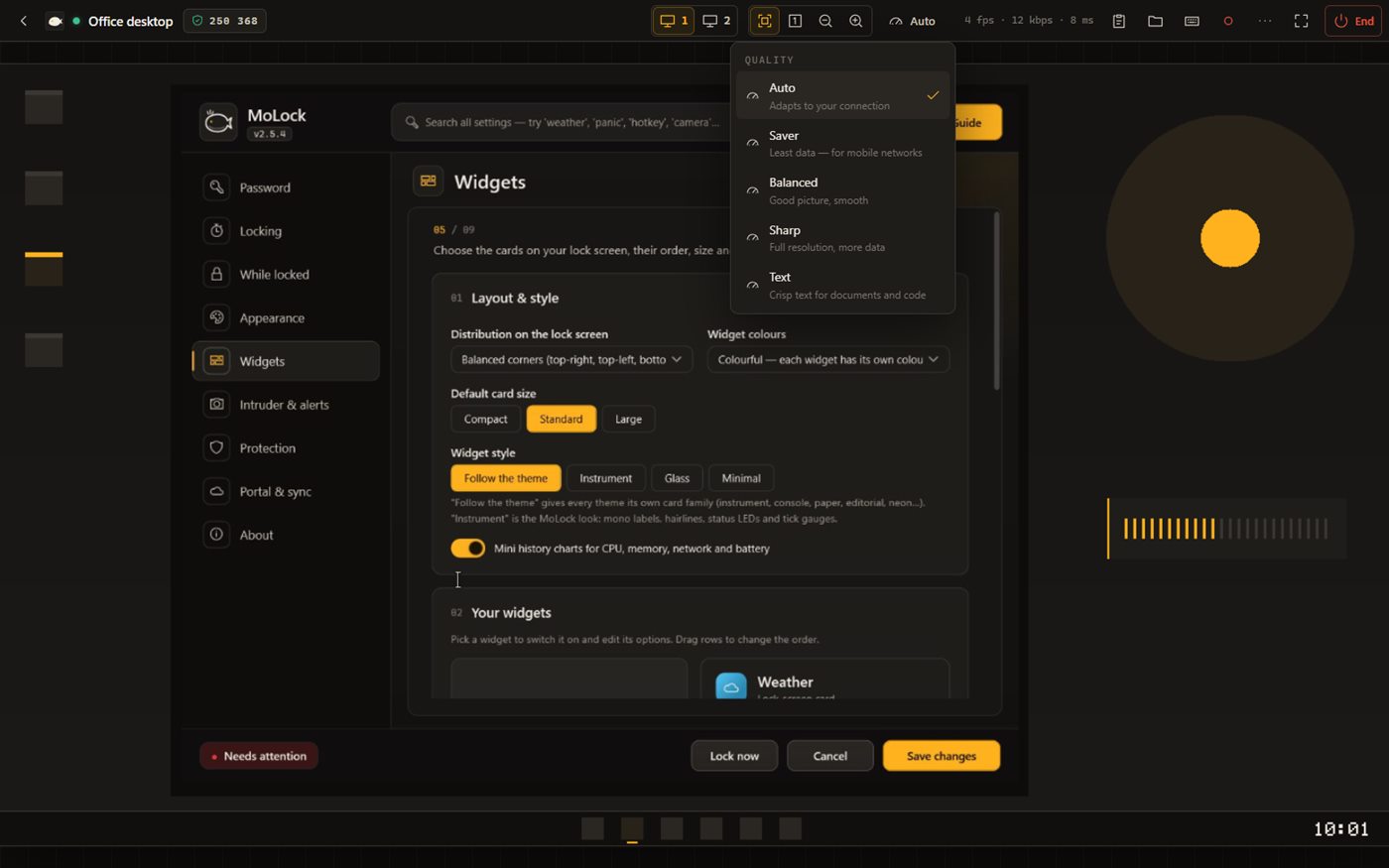
Auto, Saver, Balanced, Sharp — or Text for documents.
Clipboard both ways
Copy text on your phone and paste it on the PC — and the other way round.
Files
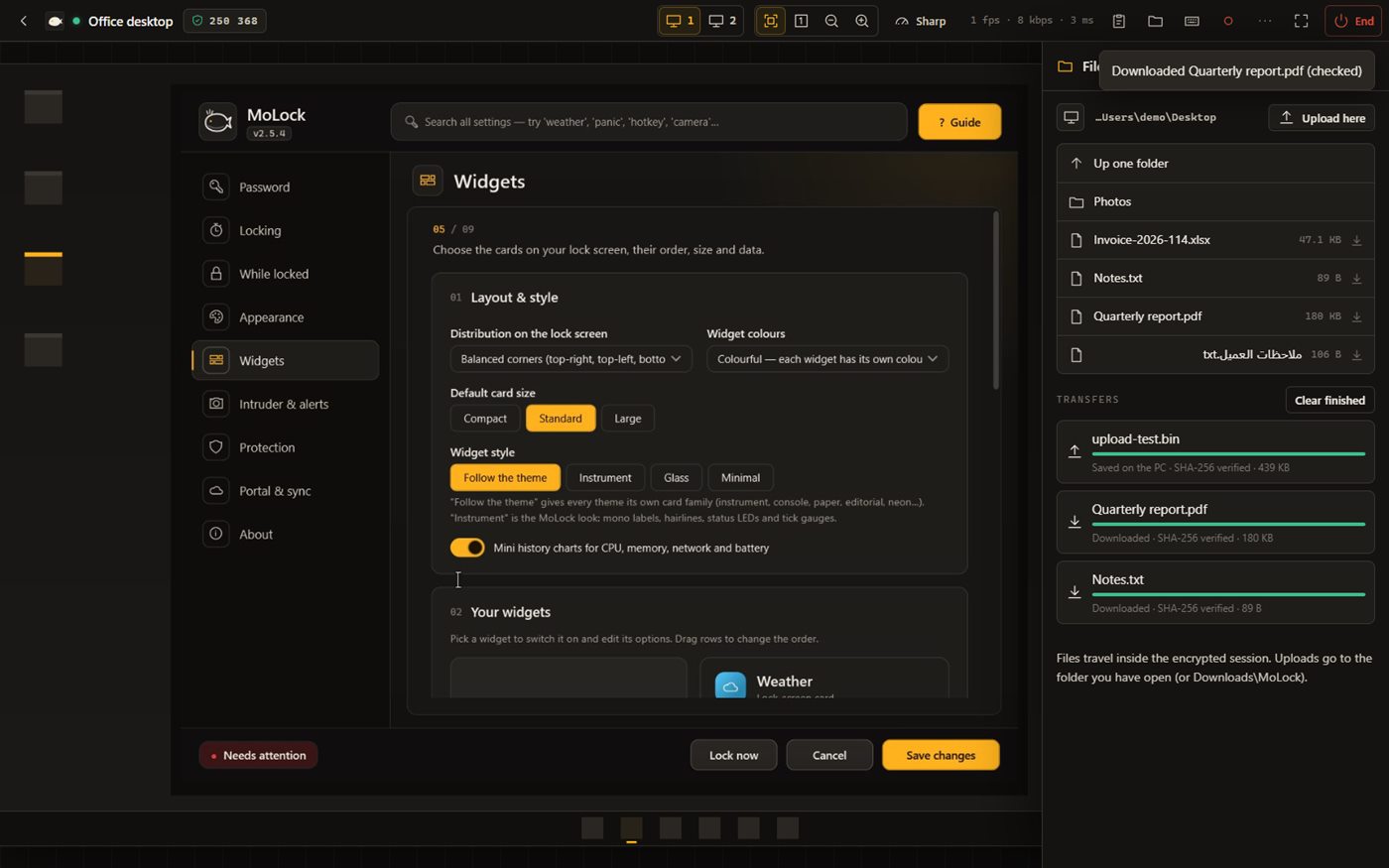
Browse drives, Desktop, Documents and Downloads; download and upload files.
Curtain mode
The PC shows a cover to people around it while you see the desktop as usual.
Block local input
Ignore the PC's own mouse and keyboard for a while — the end shortcut always still works.
Unlock & lock
Unlock MoLock once from the session, or lock it; every unlock is logged and reported.
03 / 10Phone controls
Built for your thumb. Not a tiny mouse.
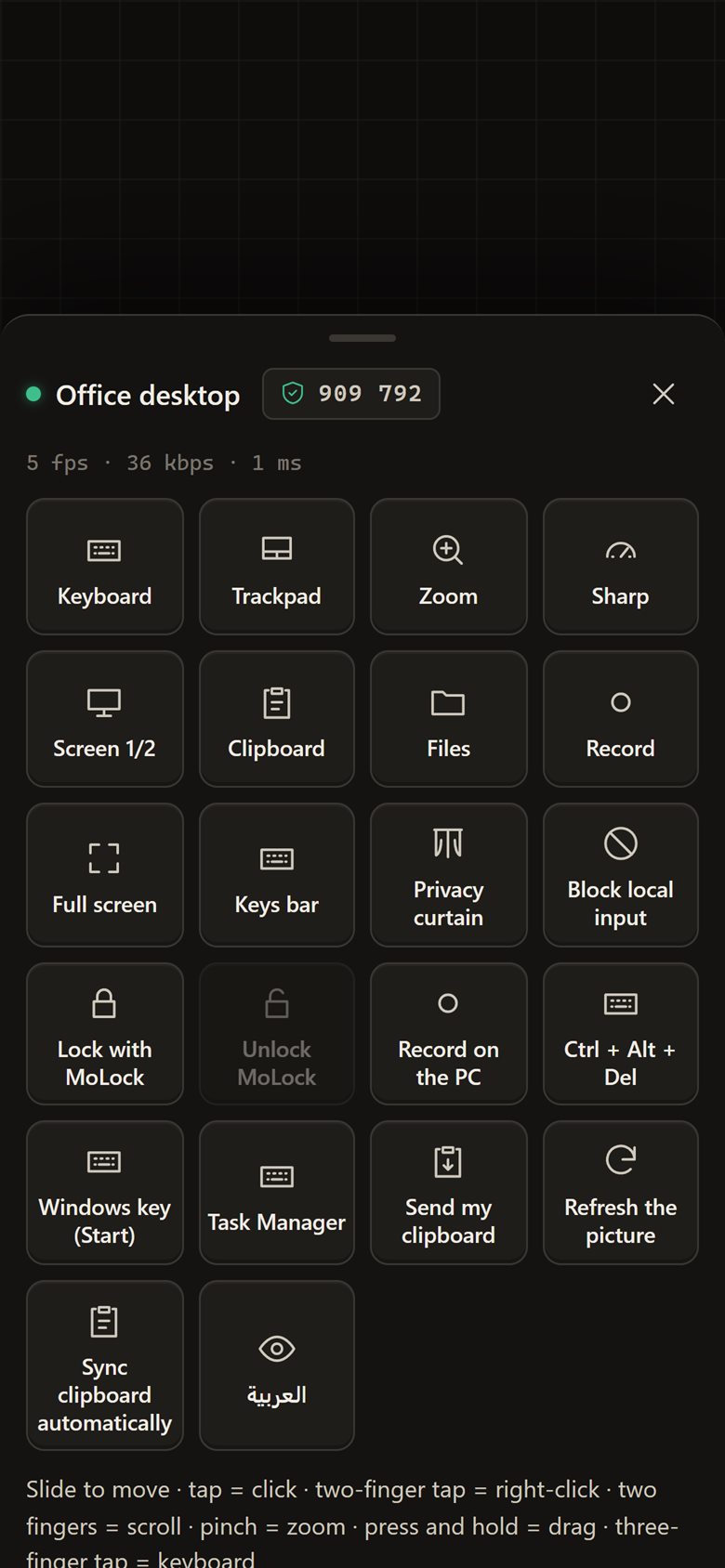
Choose between two modes: Trackpad turns your phone screen into a large touchpad for precise pointing, and Direct touch clicks where you touch. Either way: pinch-zoom, your phone's own keyboard and a bar for the keys it doesn't have.
| What you want | Trackpad mode | Direct touch |
|---|---|---|
| Move the pointer | Slide one finger | — the pointer jumps where you tap |
| Click | Tap | Tap exactly there |
| Double-click | Double tap | Double tap |
| Right-click | Two-finger tap | Long press |
| Scroll | Two-finger slide | Two-finger slide |
| Drag or select | Double tap, hold, then slide | Drag with one finger |
| Zoom the view | Pinch — the zoomed view follows the pointer | Pinch |
Keyboard and special keys
Type with your phone's keyboard in any language — Arabic, voice dictation and suggestions all arrive on the PC as text. Above it sits a bar with Esc, Tab, Ctrl, Alt, Shift, Win and the arrows, plus a menu of ready shortcuts such as Alt+Tab, Win+D and Ctrl+Shift+Esc.
Keys barabove your phone keyboard
EscTabCtrlAlt⇧Win←↑↓→⋯
- WinStart menu
- Win + DShow desktop
- Win + EFile Explorer
- Alt + TabSwitch windows
- Alt + F4Close window
- Ctrl + Shift + EscTask Manager
- Ctrl + C / VCopy & paste
- Ctrl + ZUndo
- Ctrl + Alt + DelNot possible remotely — use MoLock's lock
Pinch-zoom only magnifies the picture on your phone — it never changes the PC's resolution. Zoom in to hit a small button, zoom out to see the whole desktop. For documents and spreadsheets, try the Text preset.
04 / 10Security, plainly
End-to-end encrypted. For real.
Between your browser and your PC sits a relay that carries the data where a direct link isn't possible. The system is designed so the relay never needs to be trusted: it holds no key and sees only sealed messages.
YOUR BROWSER
Opens the picture here
- Fresh keys for every session
- Checks your PC's signature
- Shows the safety code
THE RELAY
Passes on, cannot read
- Sees: time, size, browser type
- Never sees: screen, typing, files
- Holds no key
YOUR PC
Seals the picture here
- Proves itself with its device key
- Key kept in its security chip when there is one
- A visible indicator all session
Fresh keys for every session
Your browser and your PC each make temporary keys and agree on a shared secret without the secret itself ever crossing the internet. The keys are gone when the session ends.
The PC proves who it is
Your PC signs the start of the session with its own key — kept in its security chip when there is one — and your browser checks it. If the check fails, the session is refused.
The relay is blind
Every message is sealed and numbered: the relay can't read it, and any altered or replayed message is rejected. Screen, typing, clipboard and files are seen by nobody but you.
05 / 10Safety code
Six digits. Nobody in the middle.
The safety code is computed from both sides' keys, so the same number appears in your browser and on your PC. If they match, nobody stands between you — not even the service. Comparing is optional, and handy when you are next to the PC or on a call with someone who is.
In your browser
482 913
Session panelOn your PC
482 913
Session indicatorSame digits? Nobody is in the middle — not even the service itself.
Seen only by you
- The screen picture and the pointer
- What you type and the mouse
- Clipboard text
- Files you download or upload
- Recordings saved to My files
Never leaves the two ends
- The session keys
- Your PC's private key
- Your account and lock passwords
The little a session needs
- That a session started, for which PC, when it ended and why
- Browser type, phone or computer, approximate country
- How much data flowed and how many frames
- Whether recording was on
06 / 10Recording & privacy
Record what matters. Hide what shouldn't show.
Recording is optional and always visible on both sides. Curtain mode keeps your screen from the eyes of people around the PC — and the cover never shows in your stream or recording.
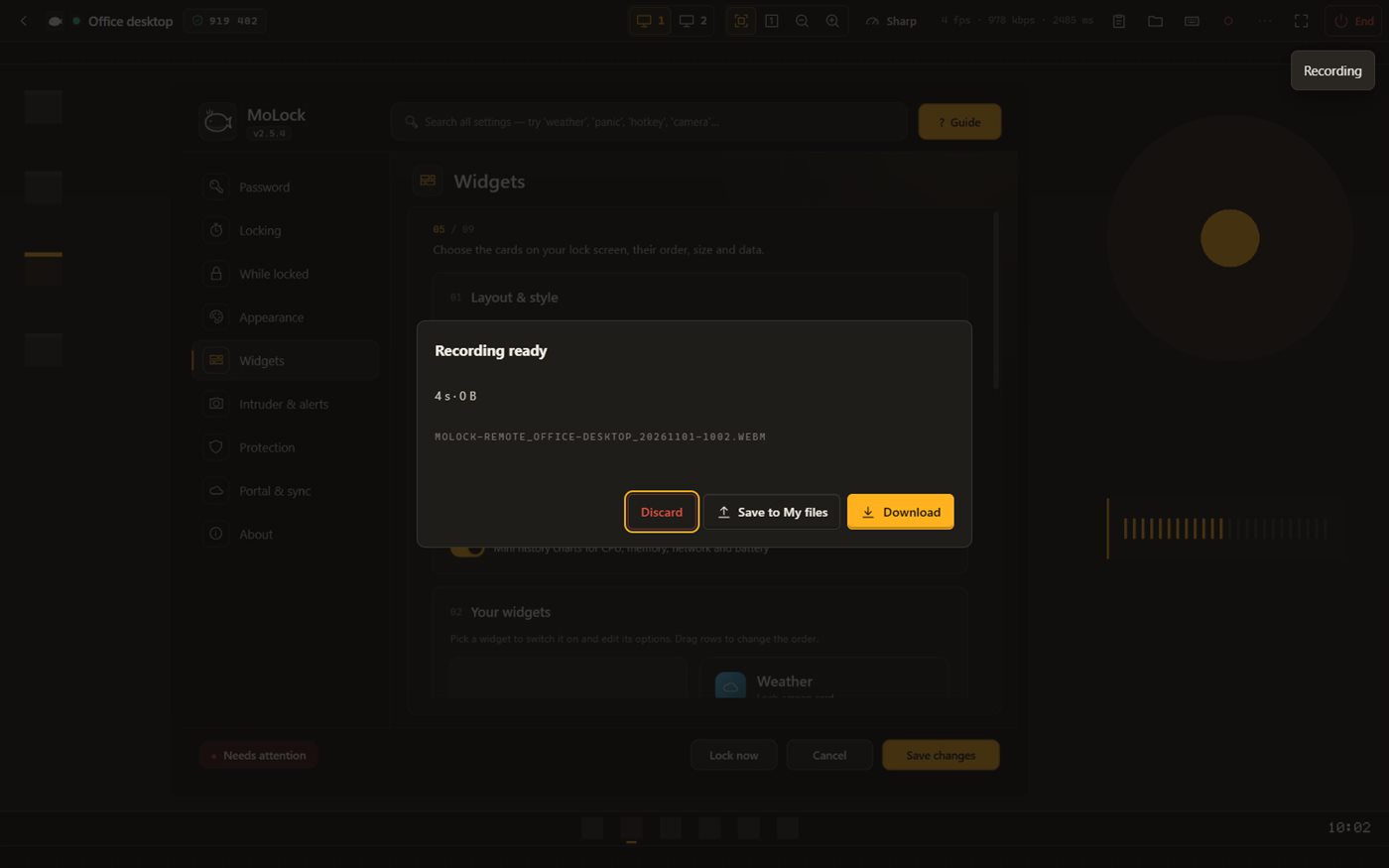
- In the browserThe video is made on your own device; download it, or save it to My files, end-to-end encrypted before upload.
- On the PCAn MP4 in Videos › MoLock › Remote sessions — and it can start automatically.
- Visible to everyoneThe PC's indicator shows "recording", the end-of-session message mentions it and your account log records it.
- CurtainA cover on every monitor: "This PC is being used remotely by its owner" — never in your stream or any recording.
At the PC
This PC is being used remotely by its owner
Curtain onIn your session
The cover never appears in your stream — or in any recording
07 / 10Transparency
Never hidden. Always yours to end.
Because signing in to your account is enough to start a session, every session is built to be visible: on the PC, on Telegram and in your account log.
- An indicator you can't hideAn amber frame and a "Remote session" pill on the PC for the whole session, with an End button. It stays out of your picture, but whoever is at the PC always sees it.
- A message on Telegram"Remote session started on your PC — Chrome on Android, Egypt", with a one-tap "⛔ End session" button, then a summary when it ends.
- Session logEvery session in your account's activity log: when, from which browser, how long and how it ended — with End all sessions.
- At the PCWhoever is at the PC can end the session at any moment from the indicator or with Ctrl+Alt+Shift+X — even when local input is blocked.
- Switch it off any timeIn the PC's Settings, or per PC from your account. File transfers and remote unlock can be turned off on the PC as well.
Remote session · ownerRECEnd
Whoever is at the PC can end the session at any momentCtrl+Alt+Shift+X
- 🖥 Remote session started on «DESKTOP-MO»
Chrome on Android · Egypt⛔ End session - Session ended · 12 min · recorded in browser
Remote sessionsEnd all sessions
- NowDESKTOP-MOChrome · Android · Egypt08:41RECLive
- Yesterday 21:10DESKTOP-MOEdge · Windows34 minEnded in browser
- Mon 09:02LAPTOP-SARASafari · iPad6 minEnded at the PC
- Sun 18:47DESKTOP-MOSamsung Internet30 minIdle
Every session is logged here and announced by the official bot
08 / 10Limits
Plain numbers. Honest limits.
- 30minwithout input ends a session (with a warning at 25)
- 8hlongest single session
- 60sfor the PC to rejoin after a blip
- 1viewerper PC at a time
Windows' protected screens
The Windows sign-in and lock screens and admin permission prompts can't be seen or controlled by any app. The picture pauses with a notice and the session carries on afterwards.
Ctrl+Alt+Del
It can't be sent remotely — use MoLock's own lock from the toolbar instead.
One viewer per PC
Starting a new session for a PC that already has one ends the old one.
Short drop-outs
If the PC's connection drops briefly, it comes back within a minute with fresh keys — no need to start over.
09 / 10Read more
In-depth guides. In plain words.
Control your PC from your phone: the MoLock Remote guide
MoLock Remote puts your whole Windows desktop in your phone's browser — screen, mouse, keyboard, files and clipboard. This guide walks through the first session, every gesture, the keyboard tricks and the settings that matter on mobile data.
How MoLock Remote keeps your screen private
A remote session carries your whole screen, every key you press and the files you move. Here is how MoLock Remote seals all of it between your browser and your PC — and the short list of things the service can still see.
Recording remote sessions: when it helps, and how to do it well
A recording of a remote session can save you an argument, a second visit or an hour of guesswork. It can also capture things nobody should keep. Here is how to get the first without the second.
10 / 10Questions
About MoLock Remote
Is MoLock Remote free?
Yes. Like the rest of MoLock, there is no subscription, no ads and no cap on sessions for normal personal use. Your PC just needs to run 2.9 and be linked to your account.
Do I need an app on my phone, or an approval on the PC?
Neither. Open your account in a browser, pick your PC and choose Remote. Signing in to your account — password plus Telegram code — is the permission. Because no approval is needed, the PC shows an indicator the whole time and the official bot tells you about every session. The feature can be switched off in the PC's Settings, or per PC from your account.
Which browsers are supported?
Any modern browser: Chrome, Edge and Firefox on a computer; Chrome, Samsung Internet and Firefox on Android; Safari on iPhone and iPad. No extensions, no apps.
Is it fast enough on mobile data?
Pictures are sent only when something on the screen changes, and quality adapts to your connection automatically, starting on Saver on mobile networks. You can also choose yourself: Saver, Balanced, Sharp, or Text for documents. Real-world speed depends on your connection and the PC's.
Can anyone else see my screen during a session?
No. Your browser and your PC agree on fresh keys for every session, the PC proves its identity with its own key, and the relay only passes sealed messages it cannot open: it never sees the screen, your typing, the clipboard or files. For extra certainty, compare the 6-digit safety code on both sides. The details, in plain words.
What if the PC is locked by MoLock?
You will see the lock screen in your session and can unlock it from there (if remote unlock is allowed on that PC — it is by default). The PC opens once, the unlock is logged and the official bot tells you. You can lock it from the session at any time too.
Can I control the Windows sign-in screen or admin permission prompts?
No. Windows' own sign-in and lock screens, and the "Do you want to allow this app to make changes?" prompts, are deliberately shielded from every app. When one appears the picture pauses with a clear notice, and the session carries on once it is gone. Ctrl+Alt+Del cannot be sent remotely either — use MoLock's own lock instead.
How do I end a session?
With End in the viewer, the End session button in the official bot's message, or End all sessions in your account. At the PC: the End button on the indicator or Ctrl+Alt+Shift+X. A session also ends by itself after 30 minutes without input (with a warning first) and after 8 hours at most.
Can I record a session?
Yes, if you choose to: in the browser (download the video to your device or save it to My files, end-to-end encrypted), or on the PC itself as an MP4. Recording status is visible on both sides. When recording helps, and how to do it responsibly.
Ready to connect
Your PC is waiting. From anywhere.
Update to 2.9, link your PC, then open your account from your phone.